
快捷菜单
常用功能一站直达
更多功能请点顶栏「快捷菜单」


[toc]
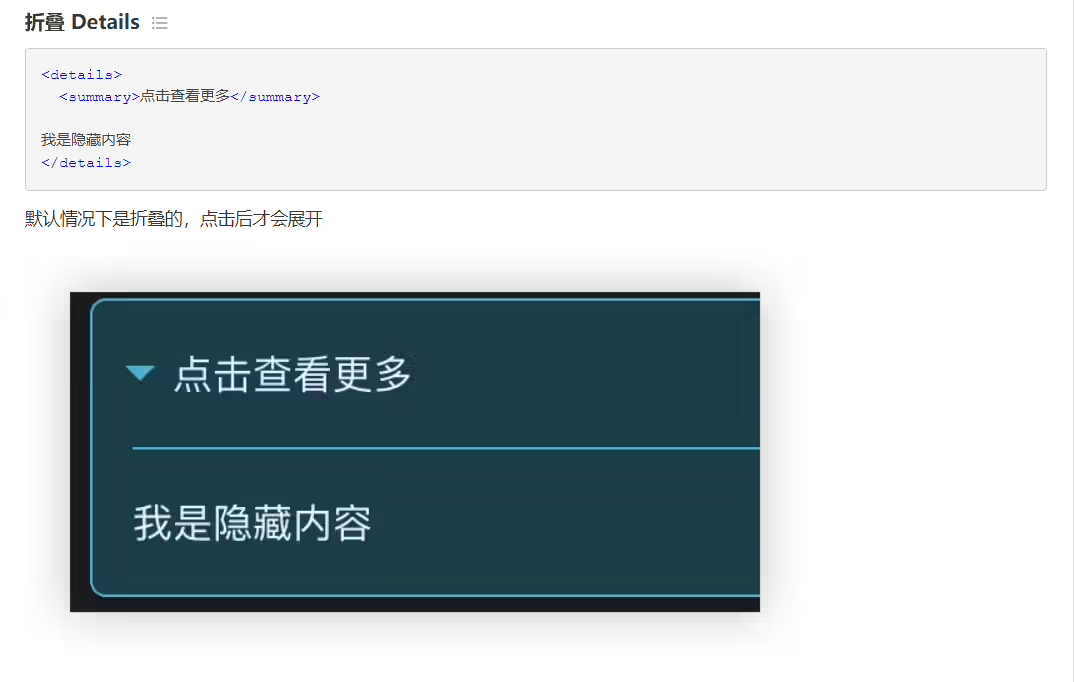
测试过程:
1<details>
2  <summary>点击查看更多</summary>
3
4我是隐藏内容
5</details>折叠代码测试:
 1#!/bin/bash
 2
 3# 由用户输入当前机器的IP地址
 4read -p "请输入当前机器的IP地址: " new_ip_address
 5echo "开始执行ruyu-blog安装脚本……:"
 6
 7#配置颜色
 8RED="\E[1;31m"
 9GREEN="\E[1;32m"
10END="\E[0m"
11
12pull_softwares(){
13    ########################################步骤1:从oss拉取基础环境包######################################
14    echo -e $RED "########################################步骤1:从oss拉取基础环境包######################################" $END
15    sleep 2
16    cd /root
17    curl -O  https://bucket-hg.oss-cn-shanghai.aliyuncs.com/code/ruyu-blog-install-softwares.zip
18    unzip ruyu-blog-install-softwares.zip
19
20    cd /root/
21    curl -O  https://bucket-hg.oss-cn-shanghai.aliyuncs.com/code/apache-maven-3.9.8-bin.tar.gz
22    curl -O  https://bucket-hg.oss-cn-shanghai.aliyuncs.com/code/jdk-17_linux-x64_bin.rpm
23    curl -O  https://bucket-hg.oss-cn-shanghai.aliyuncs.com/code/node-v16.20.2-linux-x64.tar.xz
24    curl -O  https://bucket-hg.oss-cn-shanghai.aliyuncs.com/code/ruyu-blog-v1.4.2.zip
25    curl -O  https://bucket-hg.oss-cn-shanghai.aliyuncs.com/code/docker-compose-linux-x86_64
26    curl -O  https://bucket-hg.oss-cn-shanghai.aliyuncs.com/code/maven-repo.tar.gz
27
28    ##解压ruyu-blog源码及sql
29    cd ~
30    unzip ruyu-blog-v1.4.2.zip
31    mv ruyu-blog-v1.4.2 ruyu-blog
32    cd ruyu-blog/sql
33    mv "blog(部署).sql" blog.sql
34    cp blog.sql ~
35}
其它内容。
docsuarusu渲染后的效果:
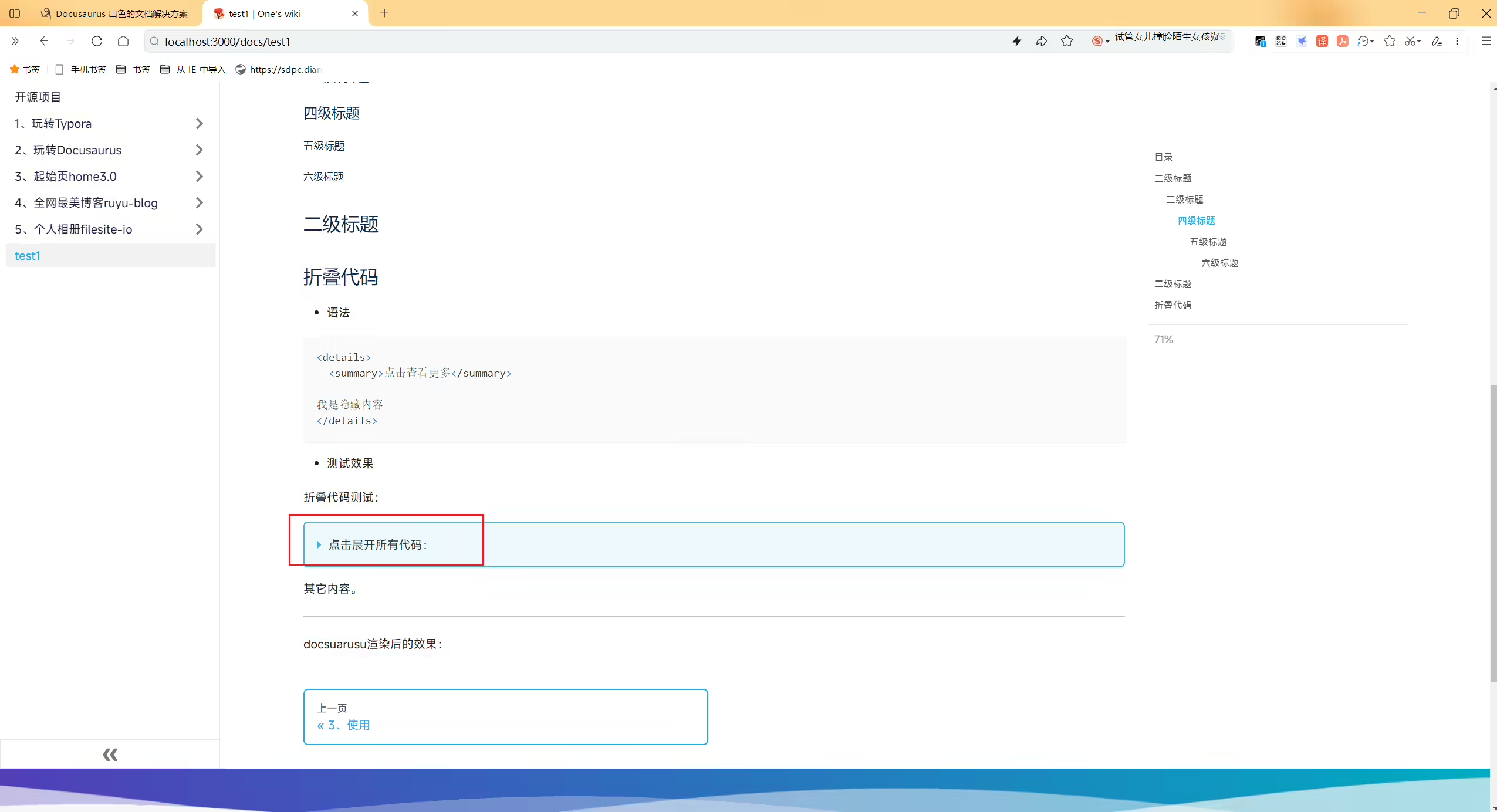

typora不支持折叠代码,不然体验会更好。
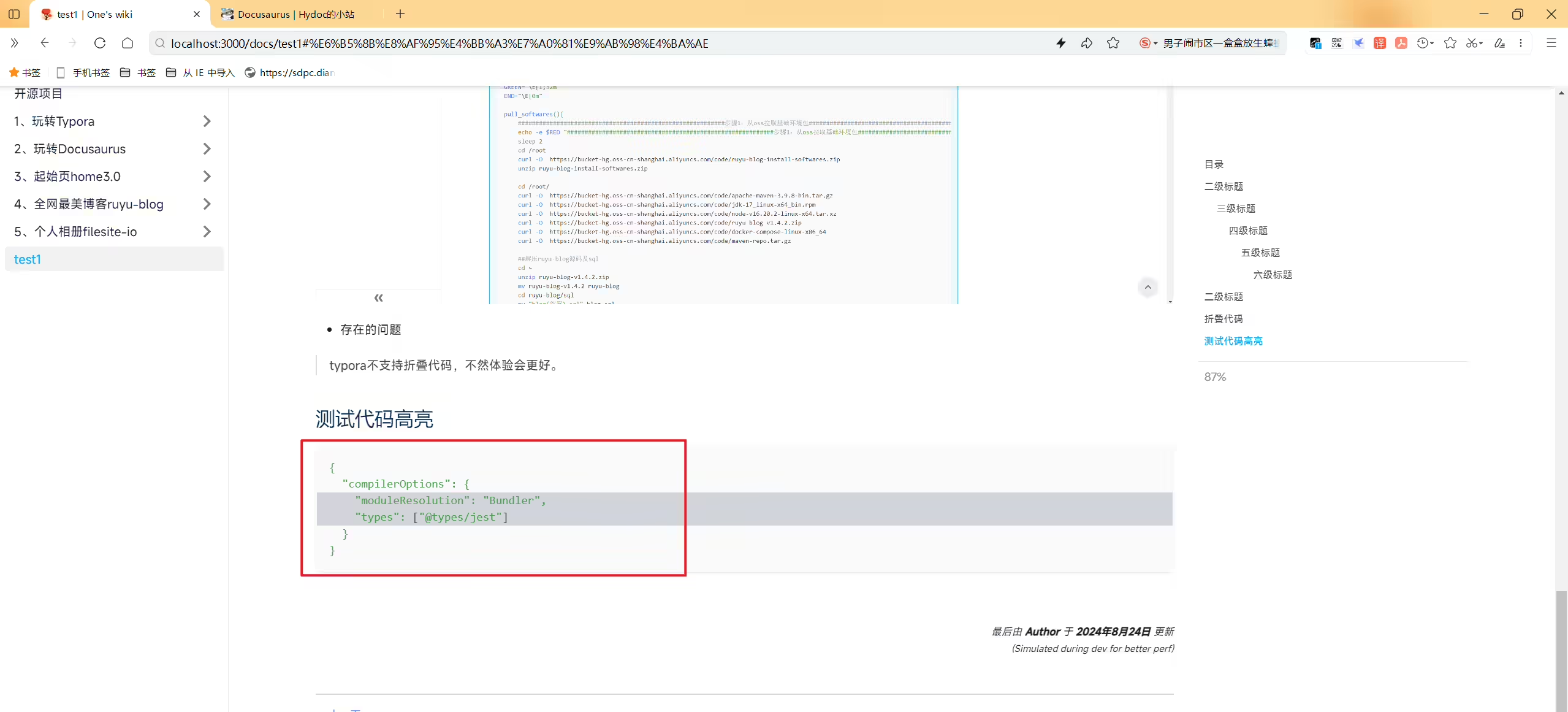
在代码里加入如下注释行就好:
1{
2  "compilerOptions": {
3   // highlight-next-line
4    "moduleResolution": "Bundler",
5    // highlight-next-line
6    "types": ["@types/jest"]
7  }
8}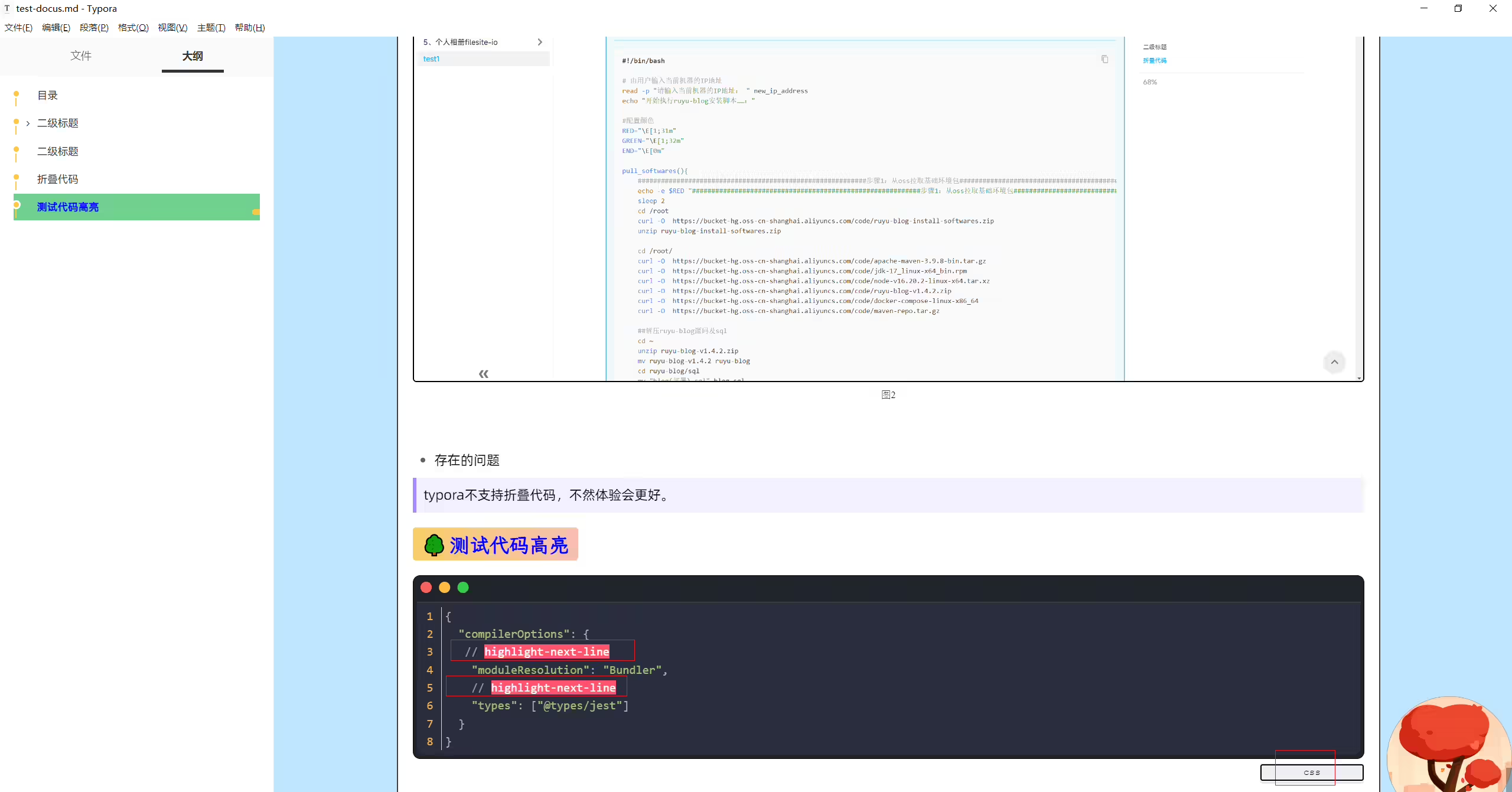
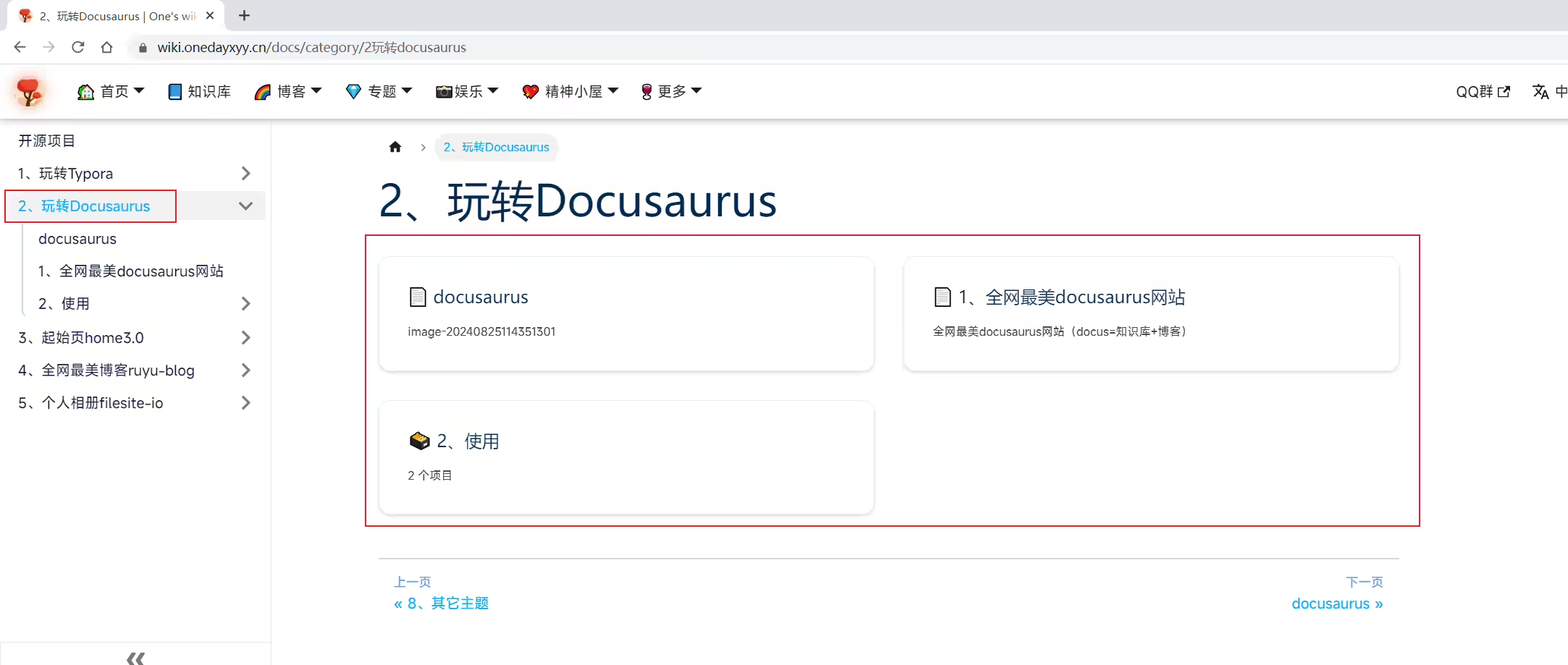
在2、玩转Docusaurus目录下新创建_category_.json文件就好:
1{
2  "link": {
3    "type": "generated-index"
4  }
5}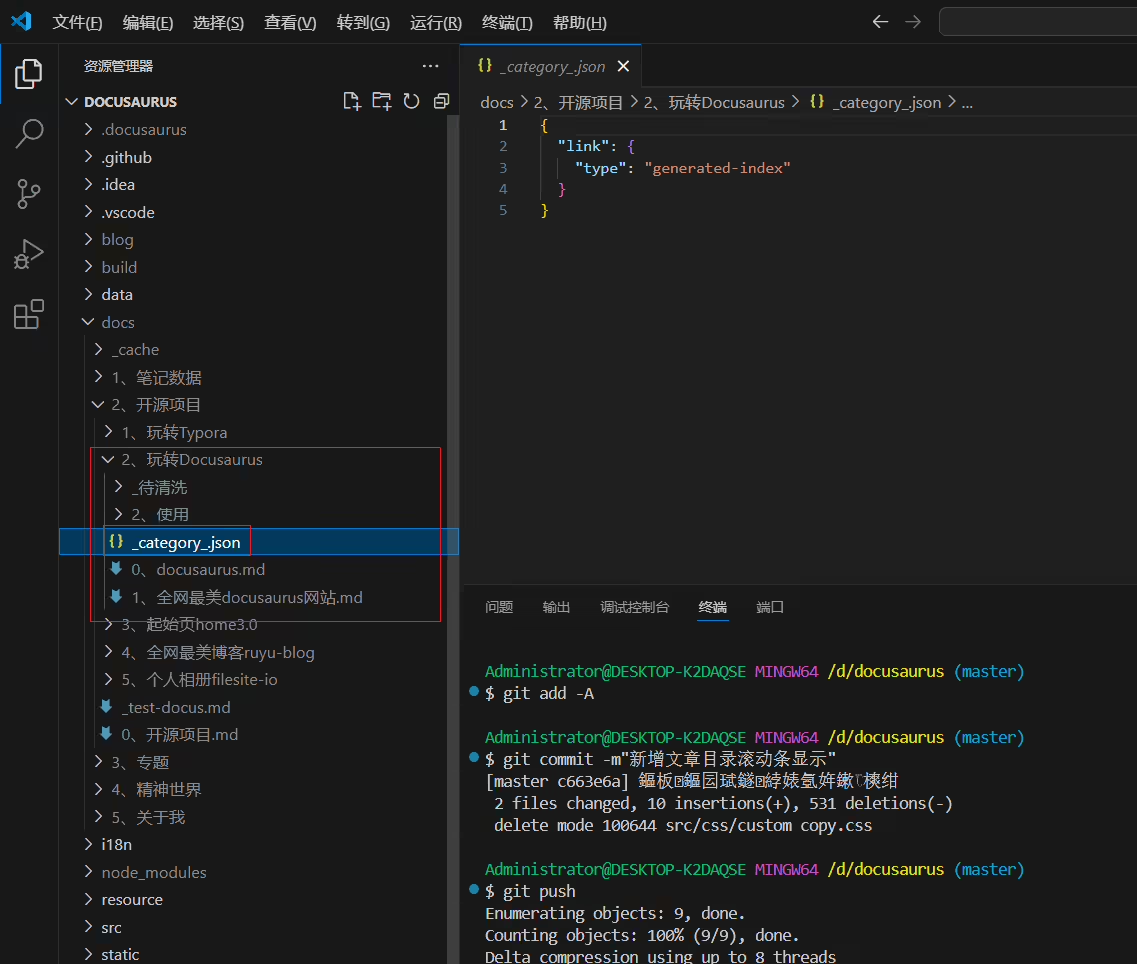
2024年9月13日-测试成功。
官方js风格测试
环境:
win10 Docusaurus version: 3.5.2 Node version: v20.12.1 npm 10.8.2 基于官网默认仓库
本次测试:
src\components\Highlight.js
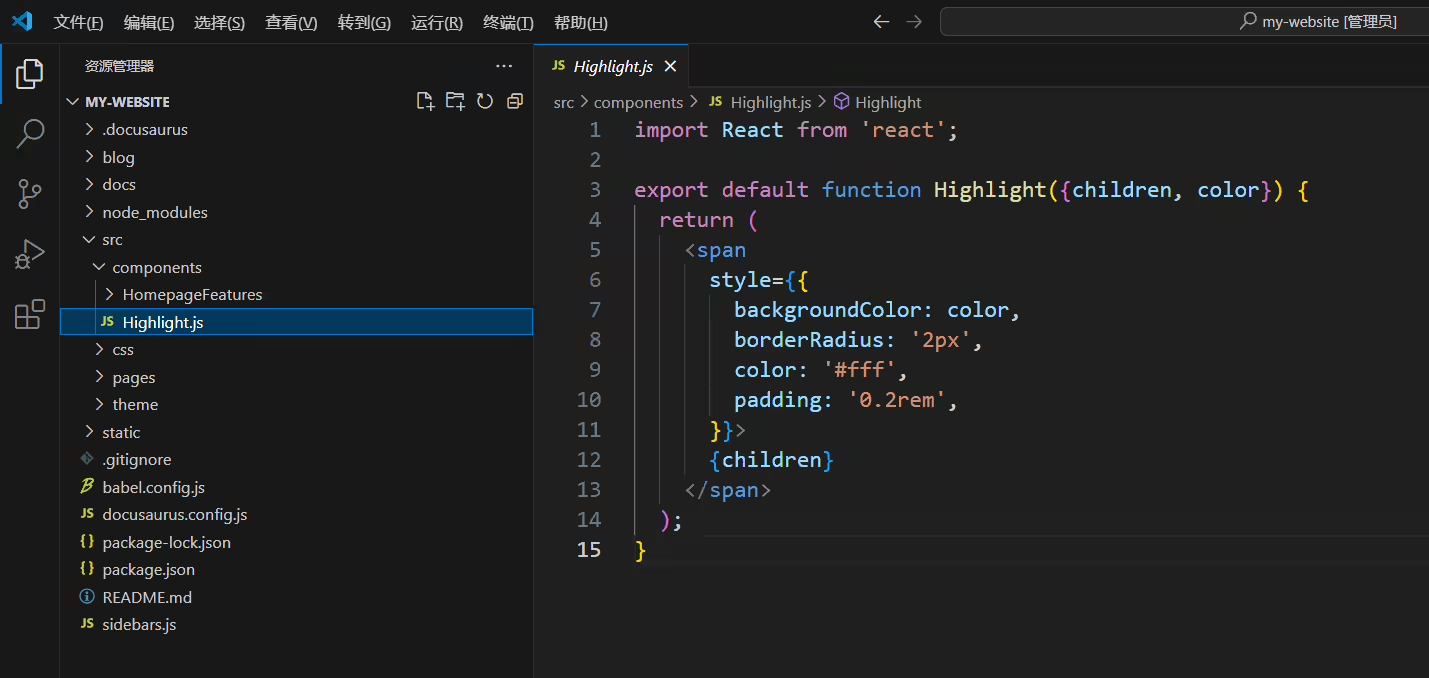
 1import React from 'react';
 2
 3export default function Highlight({children, color}) {
 4  return (
 5    <span
 6      style={{
 7        backgroundColor: color,
 8        borderRadius: '2px',
 9        color: '#fff',
10        padding: '0.2rem',
11      }}>
12      {children}
13    </span>
14  );
15}
src\theme\MDXComponents.js
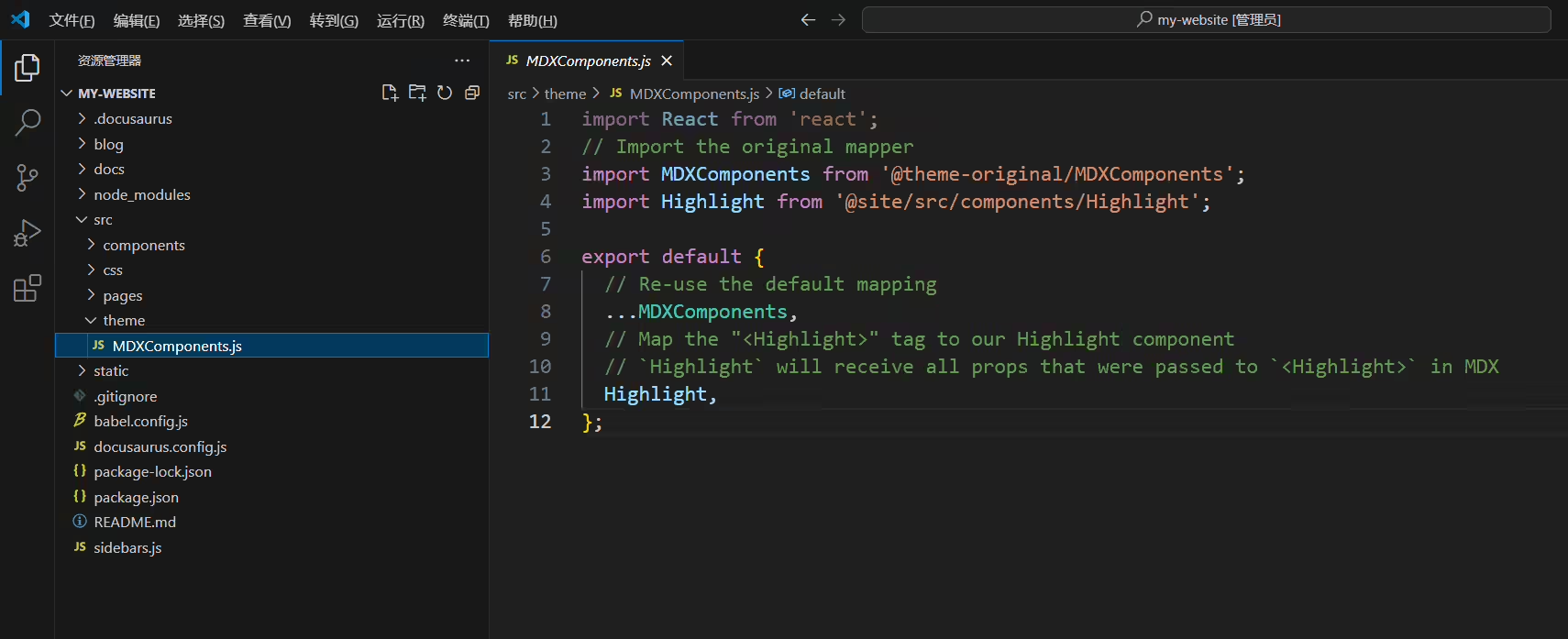
 1import React from 'react';
 2// Import the original mapper
 3import MDXComponents from '@theme-original/MDXComponents';
 4import Highlight from '@site/src/components/Highlight';
 5
 6export default {
 7  // Re-use the default mapping
 8  ...MDXComponents,
 9  // Map the "<Highlight>" tag to our Highlight component
10  // `Highlight` will receive all props that were passed to `<Highlight>` in MDX
11  Highlight,
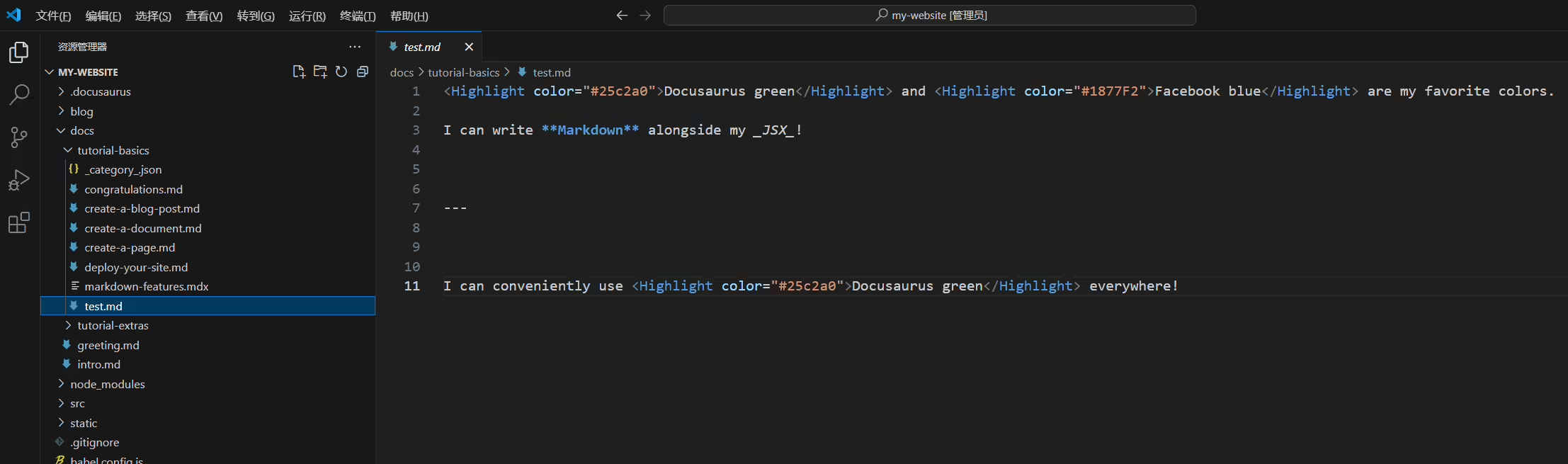
12};docs\tutorial-basics\test.md
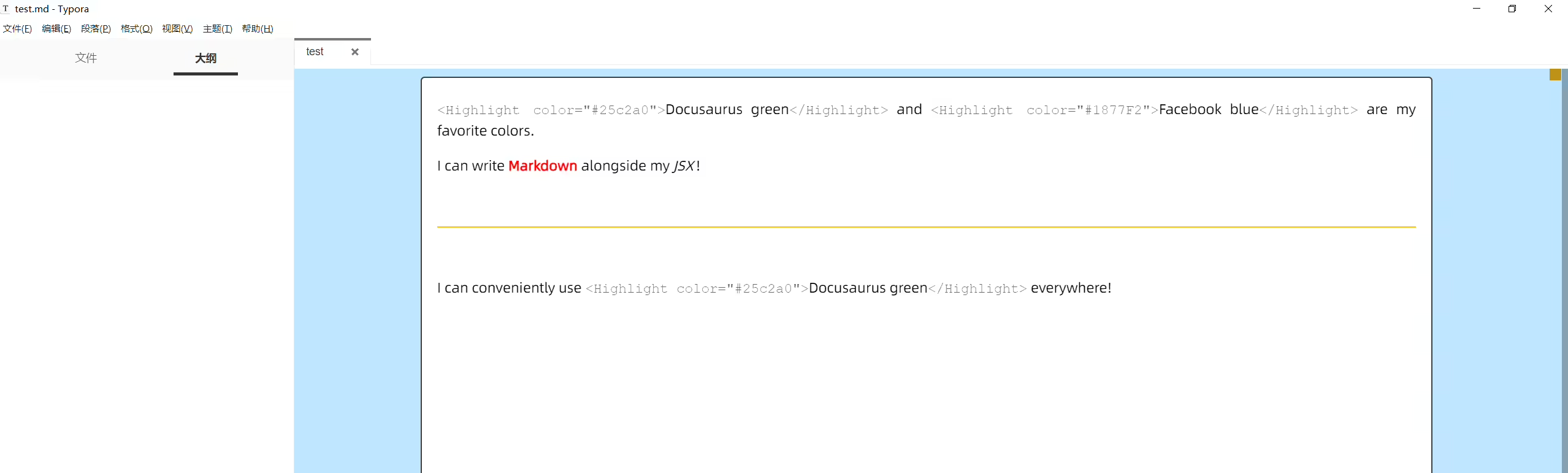
typora里效果:
 1<Highlight color="#25c2a0">Docusaurus green</Highlight> and <Highlight color="#1877F2">Facebook blue</Highlight> are my favorite colors.
 2
 3I can write **Markdown** alongside my _JSX_!
 4
 5
 6
 7---
 8
 9
10
11I can conveniently use <Highlight color="#25c2a0">Docusaurus green</Highlight> everywhere!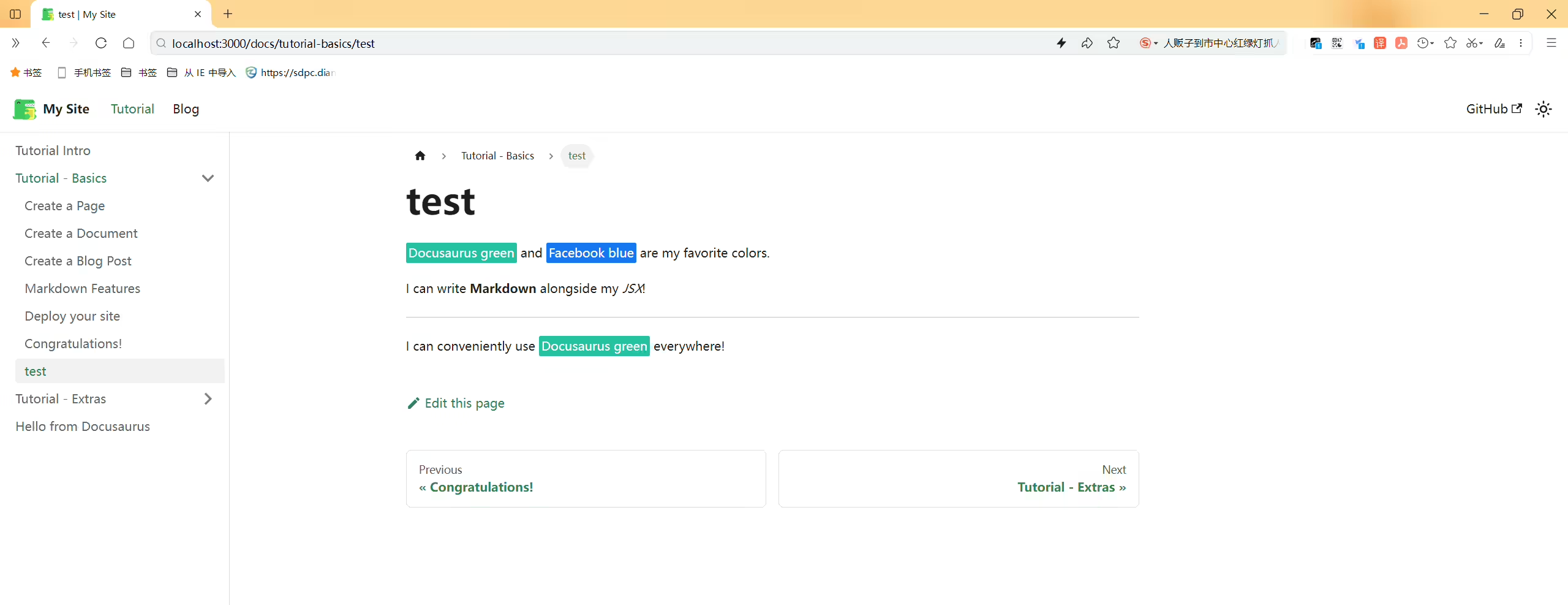
这个小功能配置后,对于用户访问很友好哦,nice😜。
测试成功-2024.11.01
1win10
2Docusaurus version: 3.5.2
3Node version: v20.12.1
4npm 10.8.2
5基于官网默认仓库
在Docusaurus中,要实现点击一个目录(类别)后直接打开一个特定的Markdown文档页面,可以使用以下方法:
方法一:在类别中指定一个默认文档
index.md:Docusaurus会自动将名为index.md的文件视为该目录的默认文档,相当于目录的“首页”。具体步骤
假设你的文档结构如下:
1复制docs/
2  getting-started/
3    _category_.json
4    index.md
5    setup.md
在这个例子中:
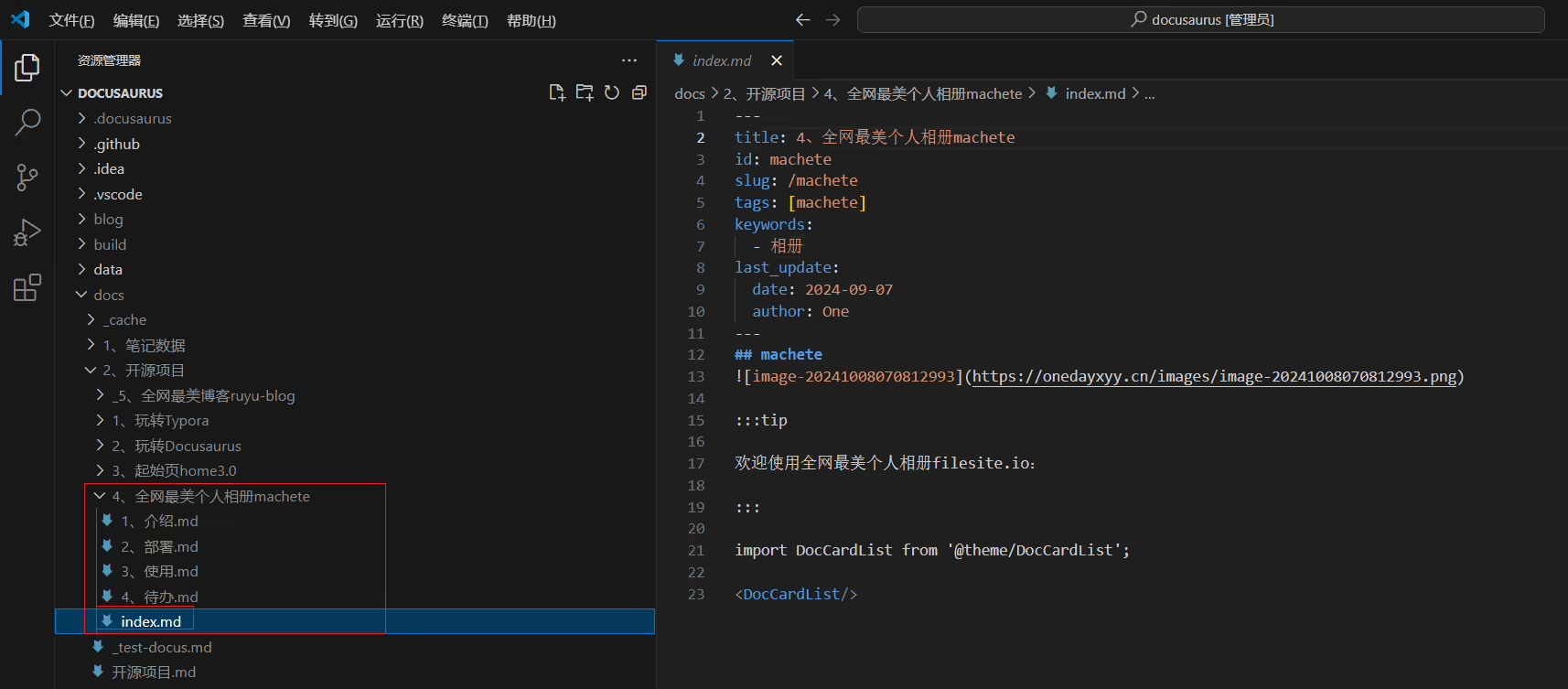
index.md 将作为 getting-started 目录的默认文档。当用户点击这个目录时,index.md将自动显示。自己本次配置:
 1---
 2title: 4、全网最美个人相册machete
 3id: machete
 4slug: /machete
 5tags: [machete]
 6keywords:
 7  - 相册
 8last_update:
 9  date: 2024-09-07
10  author: One
11---
12## machete1win10
2Docusaurus version: 3.5.2
3Node version: v20.12.1
4npm 10.8.2
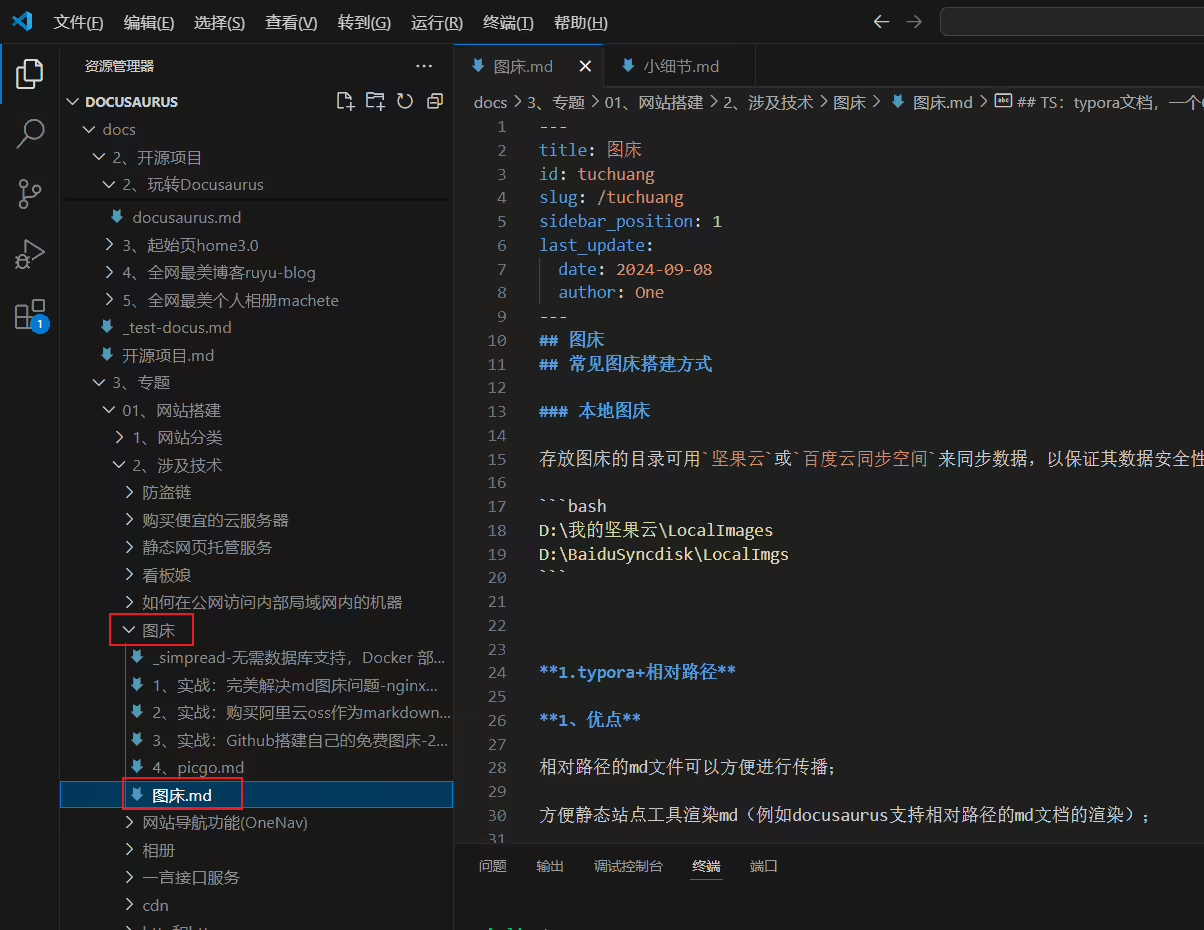
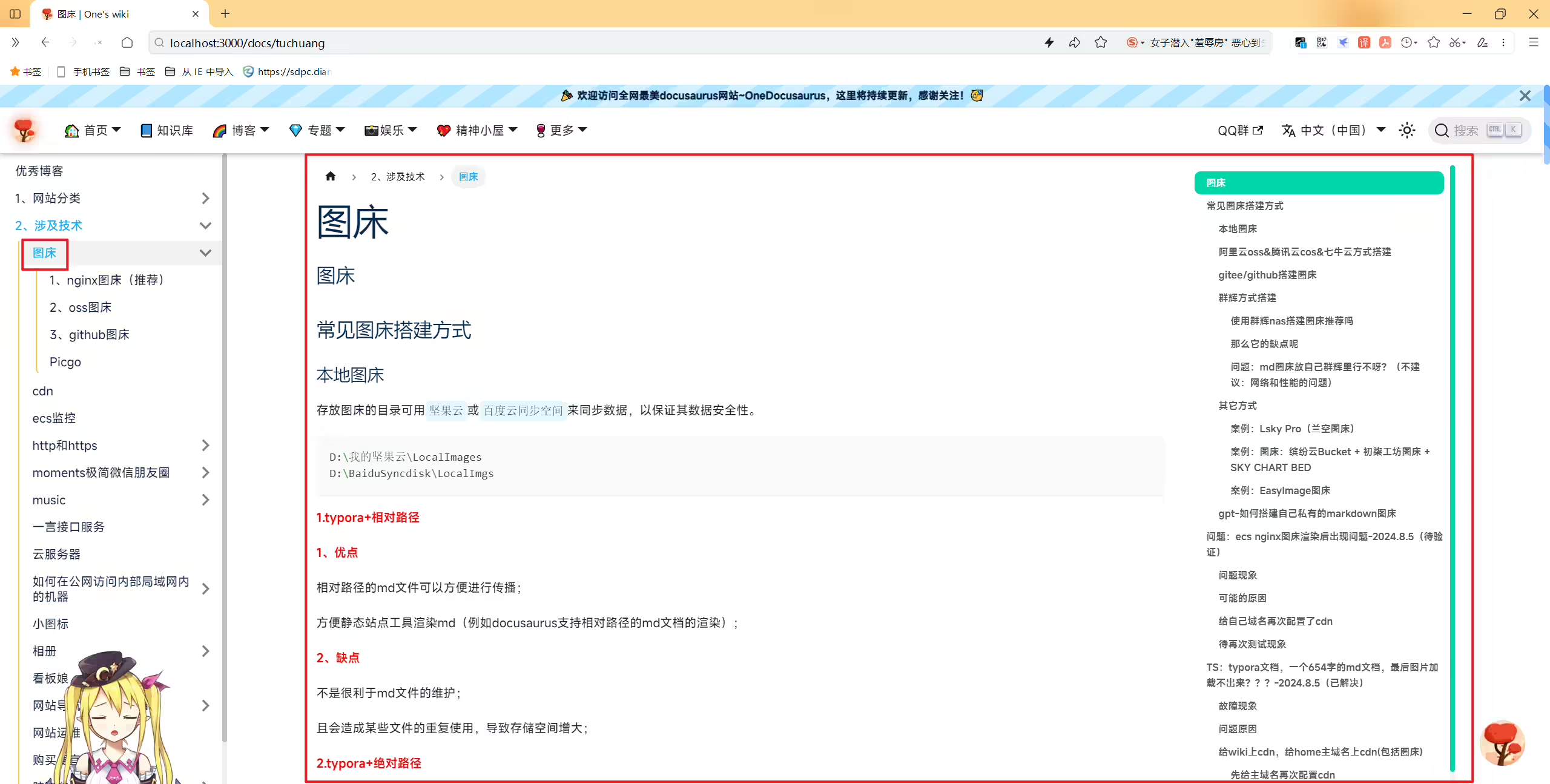
5基于官网默认仓库目录下的md名称和目录名称如果一致的话,那么渲染后的效果就会是以下这样的(点击目录后,直接到达了这个md页面,很nice)。
个人更推荐第一种方式,更加灵活一些。
我的博客主旨:
🍀 微信二维码
x2675263825 (舍得), qq:2675263825。

🍀 微信公众号
《云原生架构师实战》

🍀 csdn
https://blog.csdn.net/weixin_39246554?spm=1010.2135.3001.5421

🍀 知乎
https://www.zhihu.com/people/foryouone

QQ群
《玩转Typora+Docusuaurus+起始页》交流群:(欢迎小伙伴一起探讨有趣的IT技术,来完成一些漂亮的项目)

开源项目:
https://wiki.onedayxyy.cn/docs/OpenSource

https://wiki.onedayxyy.cn/docs/typora


好了,关于本次就到这里了,感谢大家阅读,最后祝大家生活快乐,每天都过的有意义哦,我们下期见!