
快捷菜单
常用功能一站直达
更多功能请点顶栏「快捷菜单」

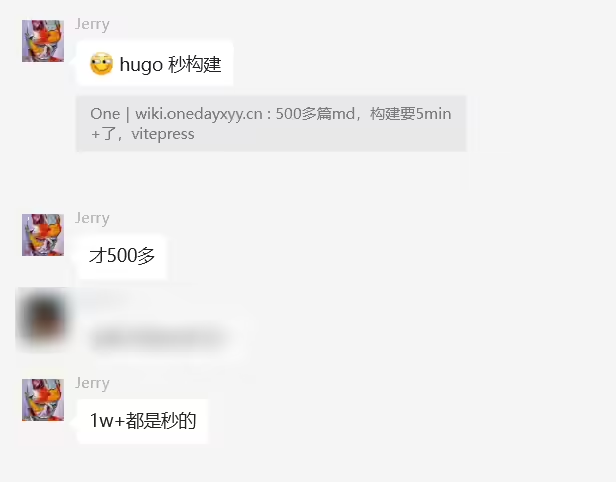
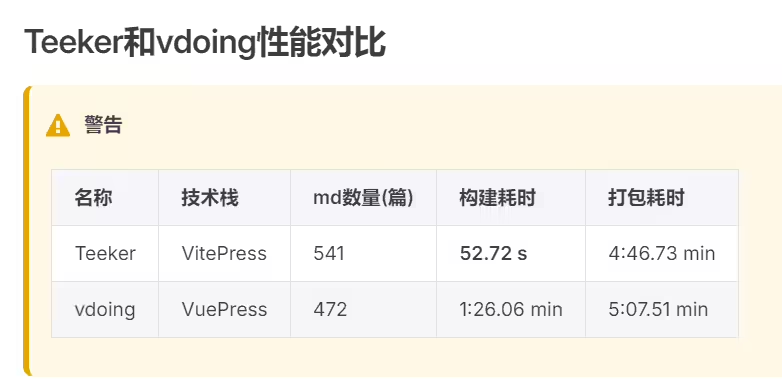
当前的静态网站生成工具对环境依赖过多,性能较差,于是使用 Go 语言写了一个静态网站生成器 Hugo。不仅解决了环境依赖、性能较差的问题,还有使用简单、部署方便等诸多优点,通过 LiveReload 实时刷新,极大的优化文章的写作体验。

🍀 hugo跟wordpress其他建站工具的对比
🍀 wordpress vs hugo vs hexo
| 工具 | 静态/动态 | 托管 | 安全性 | 访问速度 | 在线编辑 | markdown |
|---|---|---|---|---|---|---|
| wordpress | 动态 | 复杂 | 需要经常升级 | 快 | 可以 | 插件支持 |
| hugo | 静态 | 简单 | 非常安全 | 非常快 | 不可以 | 支持 |
| hexo | 静态 | 简单 | 非常安全 | 快 | 不可以 | 支持 |
| 工具 | 编程语言 | seo支持 | 插件 | 主题 | 页面生成速度 | 安装和使用 | 生态 |
|---|---|---|---|---|---|---|---|
| wordpress | PHP | 不友好 | 支持 | 非常多 | 不支持 | 复杂 | |
| hugo | Go | 友好 | 不支持 | 多 | 非常快 | 简单 | 生态会好些 |
| hexo | nodejs | 友好 | 很多 | 非常多 | 快(当文件很多,就特别慢了) | 稍微复杂 |
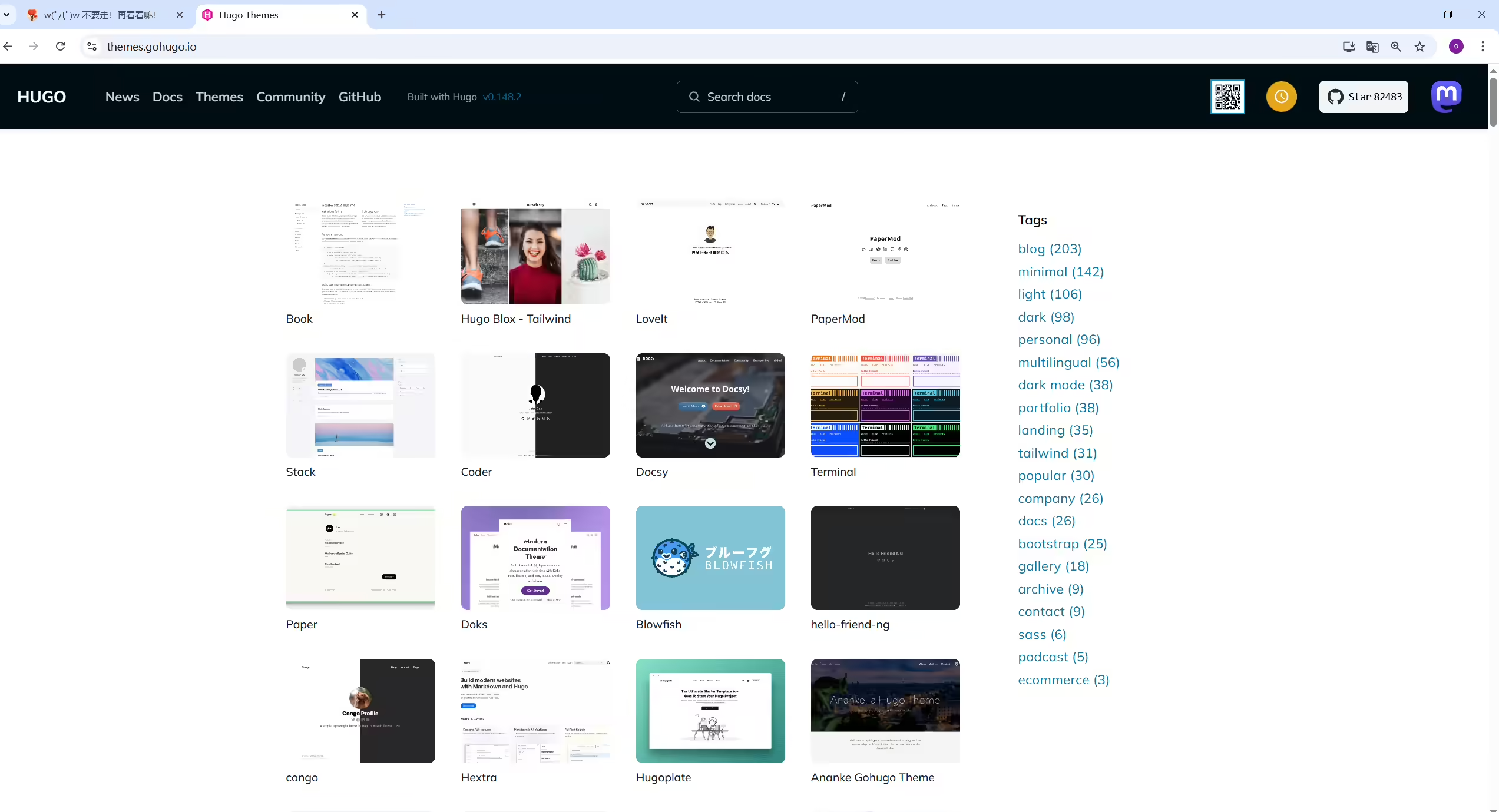
文章链接:https://zhuanlan.zhihu.com/p/567278446 《分享一个简洁、优雅且高效的 Hugo 博客主题 - FixIt》
域名体验:https://fixit.lruihao.cn/zh-cn/

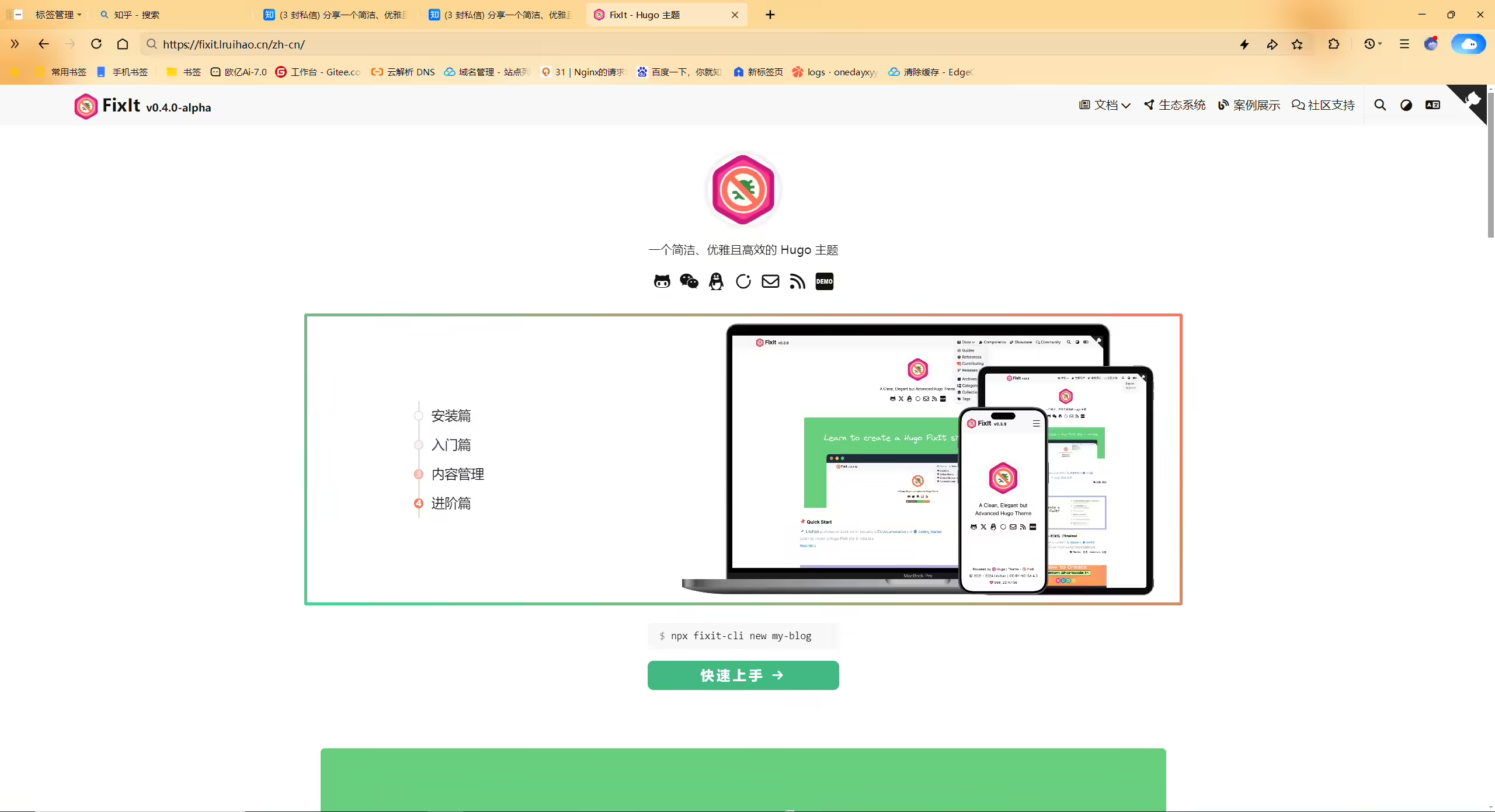
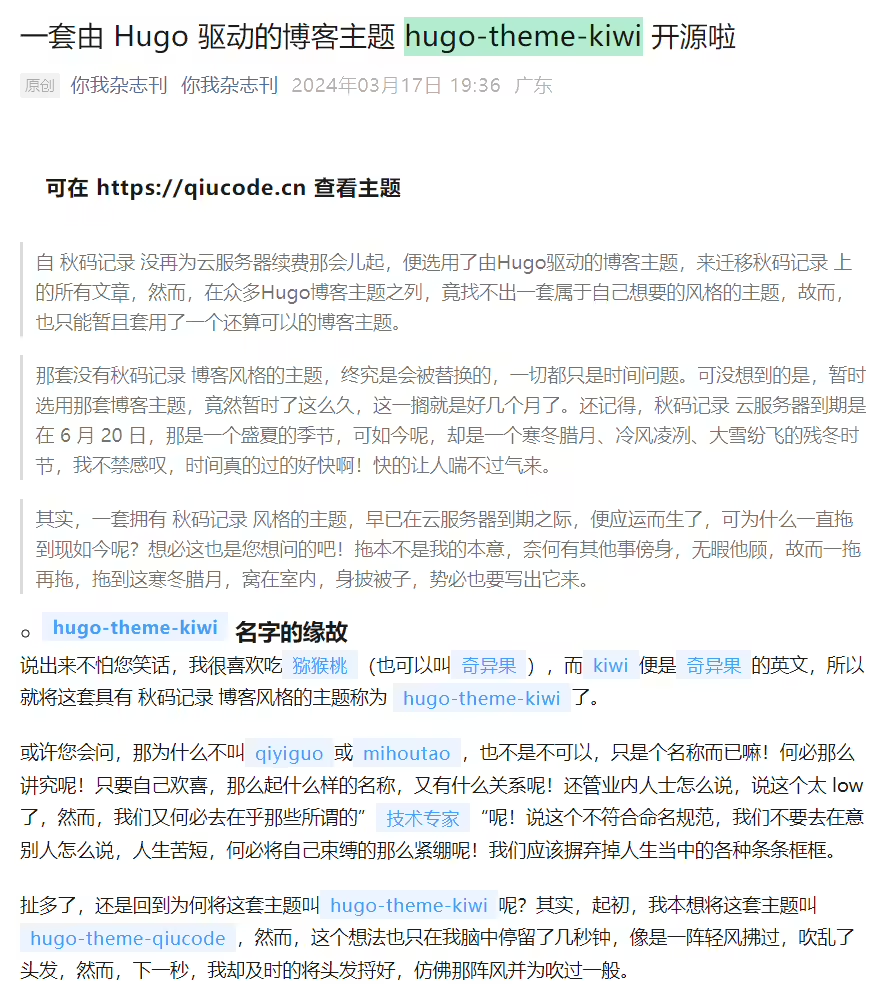
文章链接:https://mp.weixin.qq.com/s/wYdY_dBR-tA81Z7AAurLNQ 《一套由 Hugo 驱动的博客主题 hugo-theme-kiwi 开源啦》
域名体验:https://qiucode.cn/
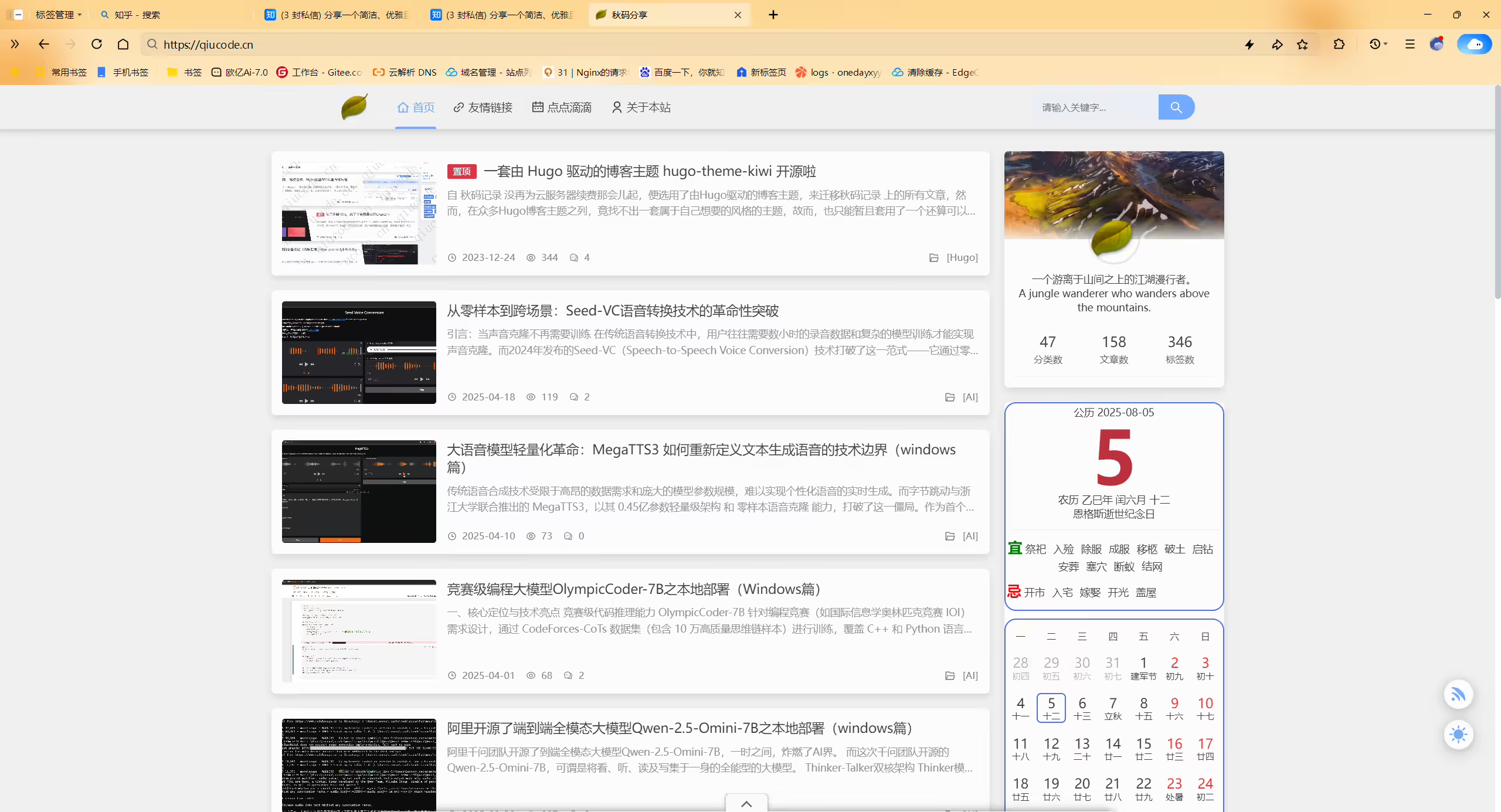
2022年5月7日21:21:42

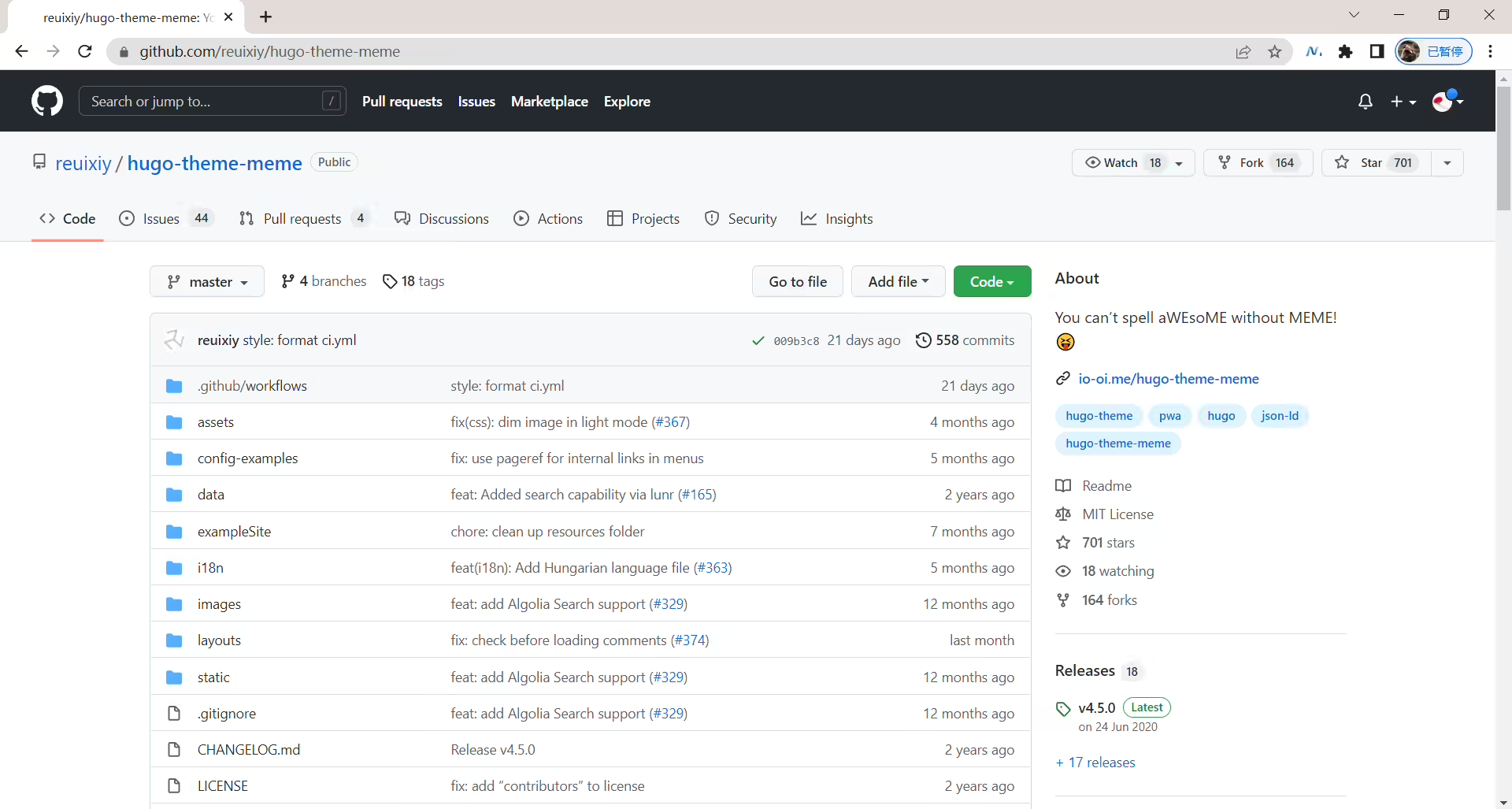
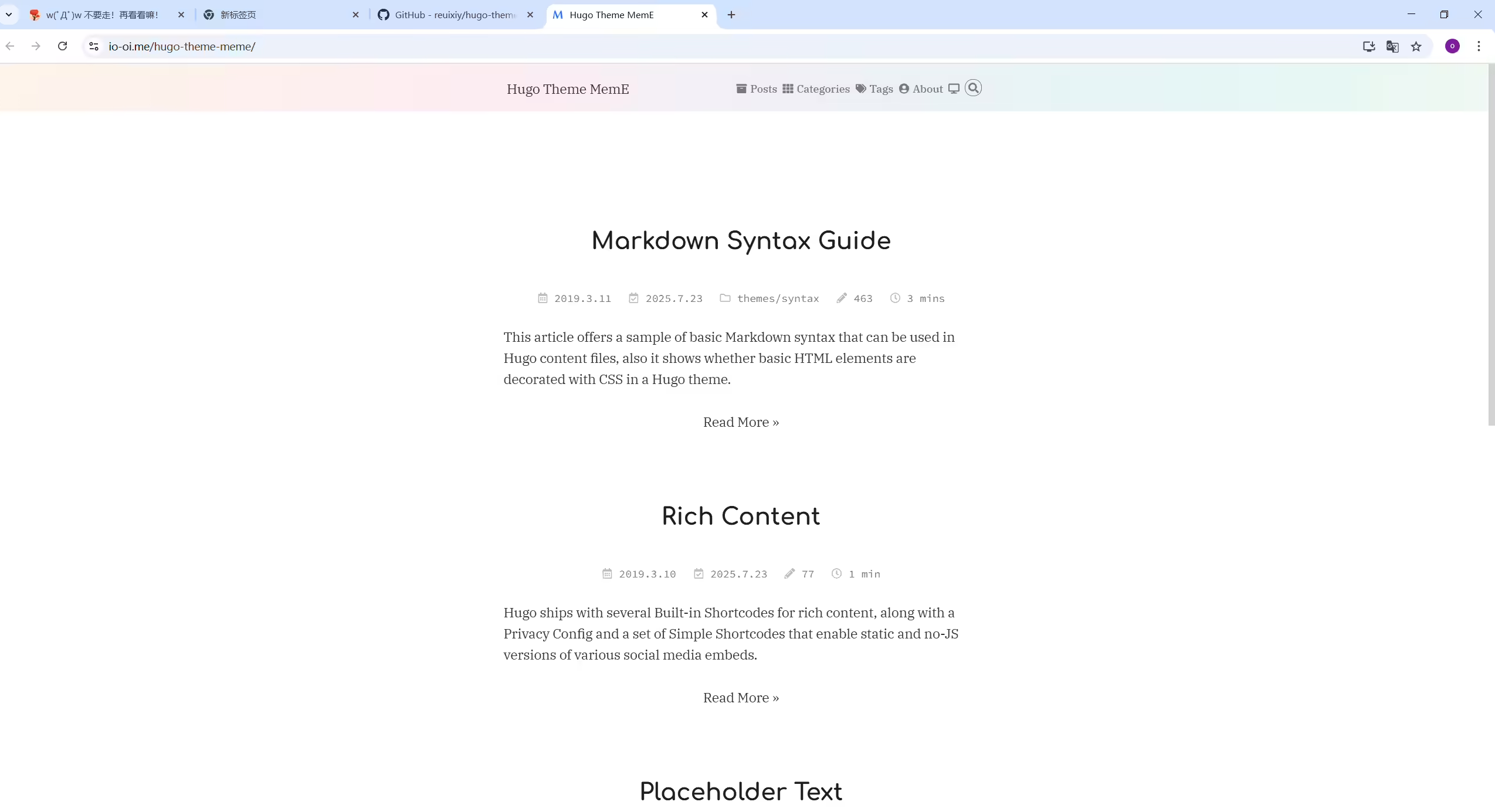
下载地址 https://github.com/reuixiy/hugo-theme-meme
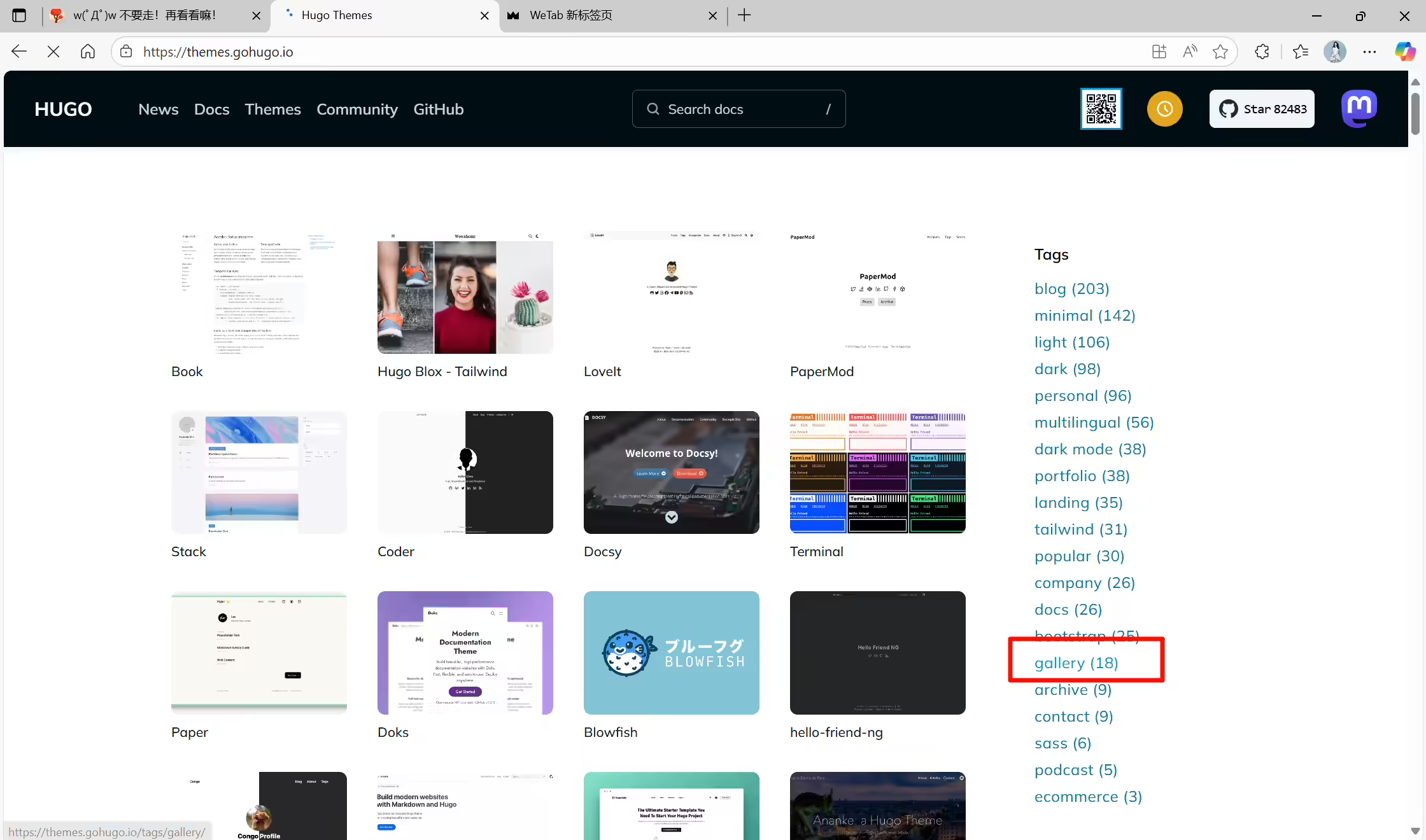
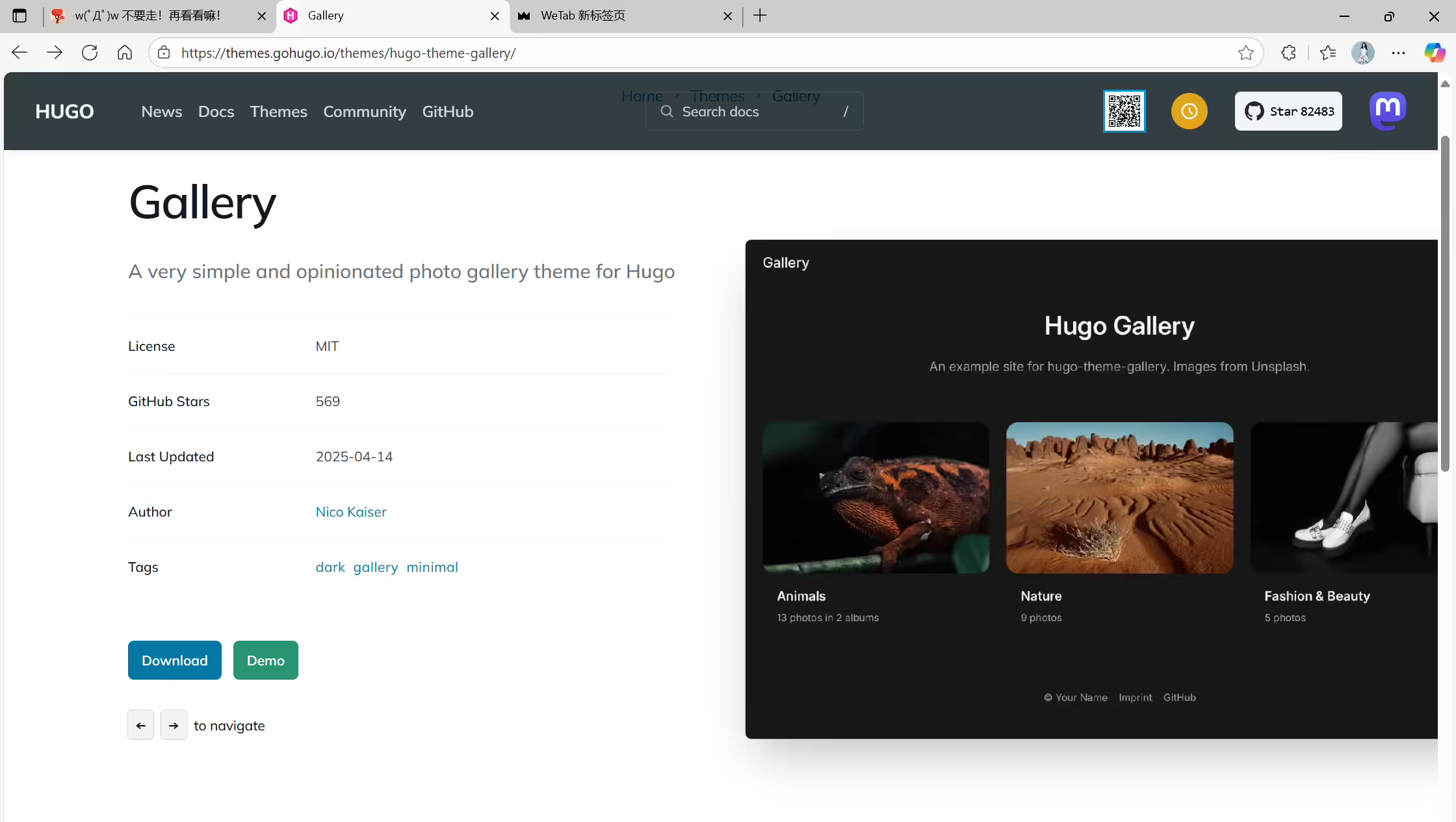
https://themes.gohugo.io/themes/hugo-theme-gallery/
https://themes.gohugo.io/themes/gallerydeluxe/
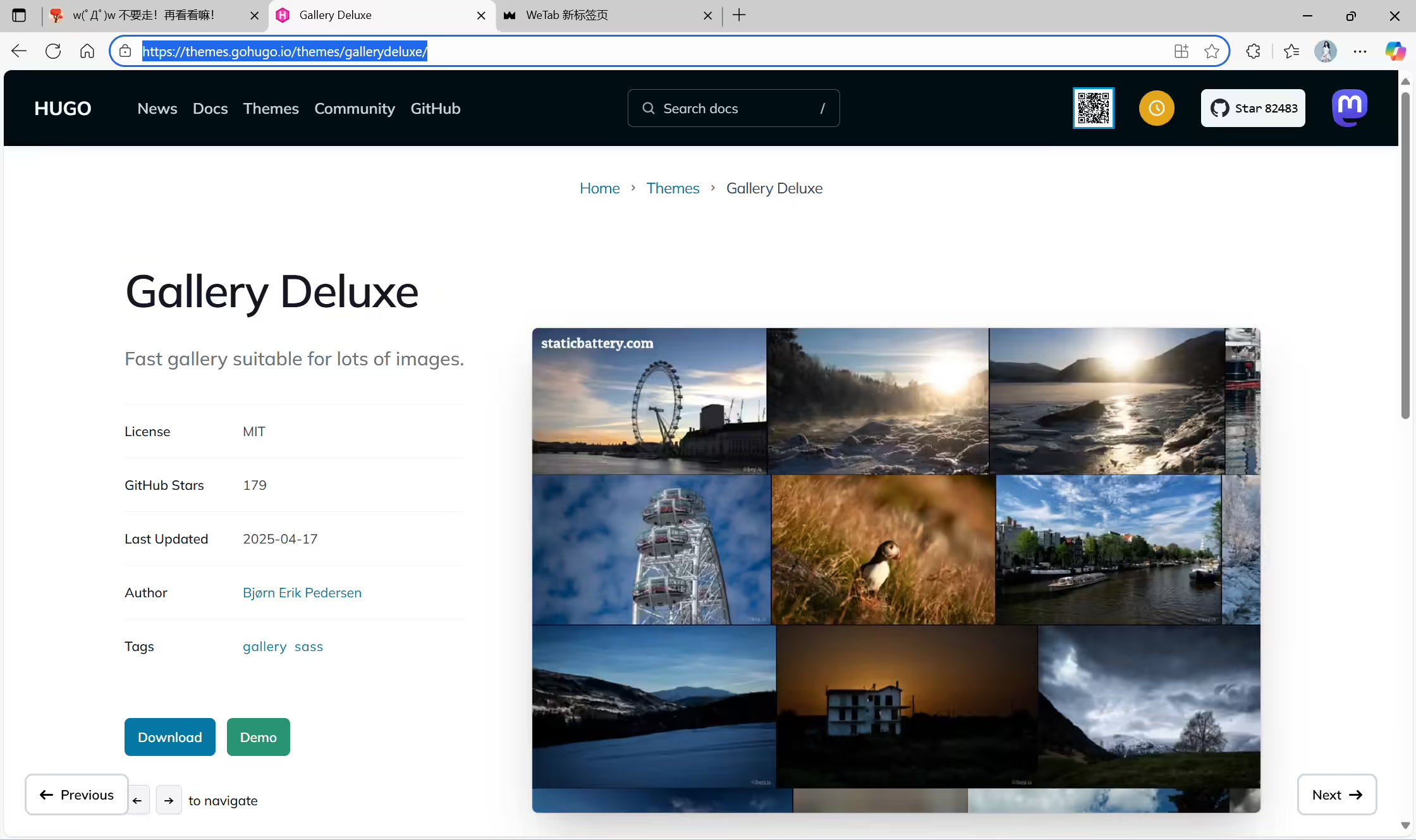
2023年9月3日采集


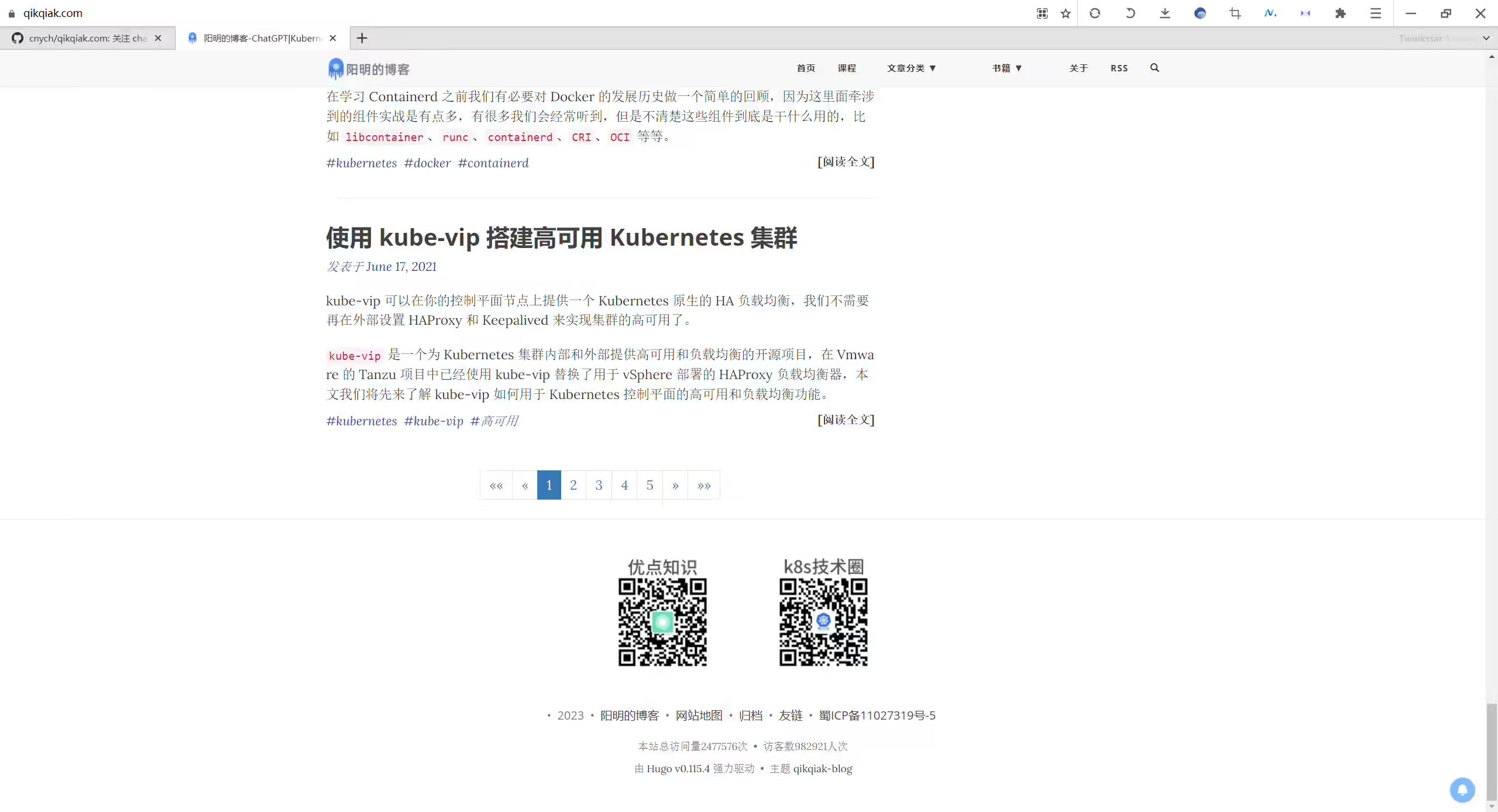
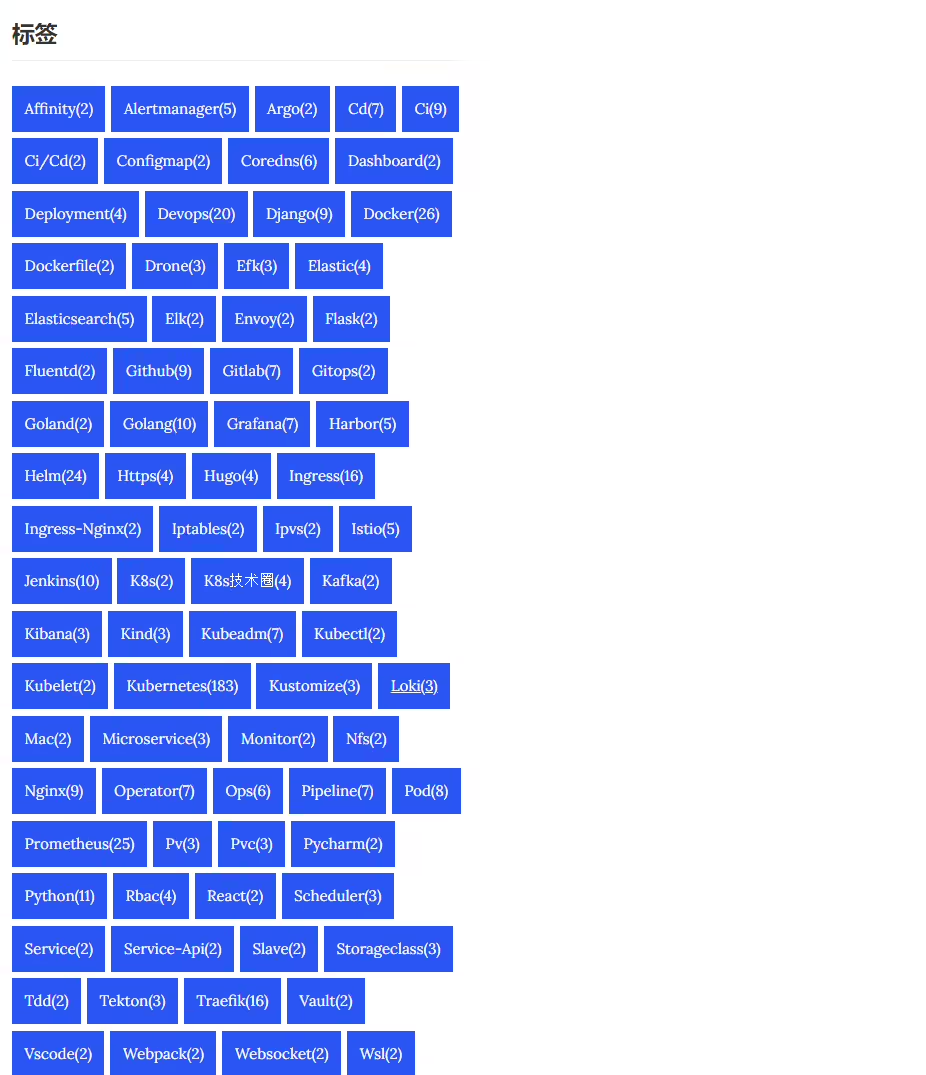
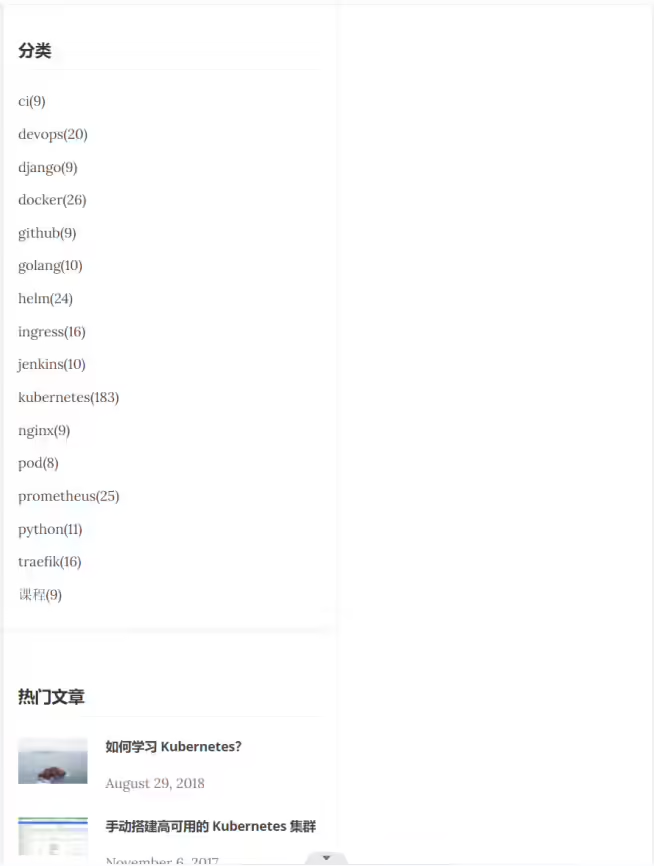
==cnych github仓库==
https://github.com/cnych/qikqiak.com
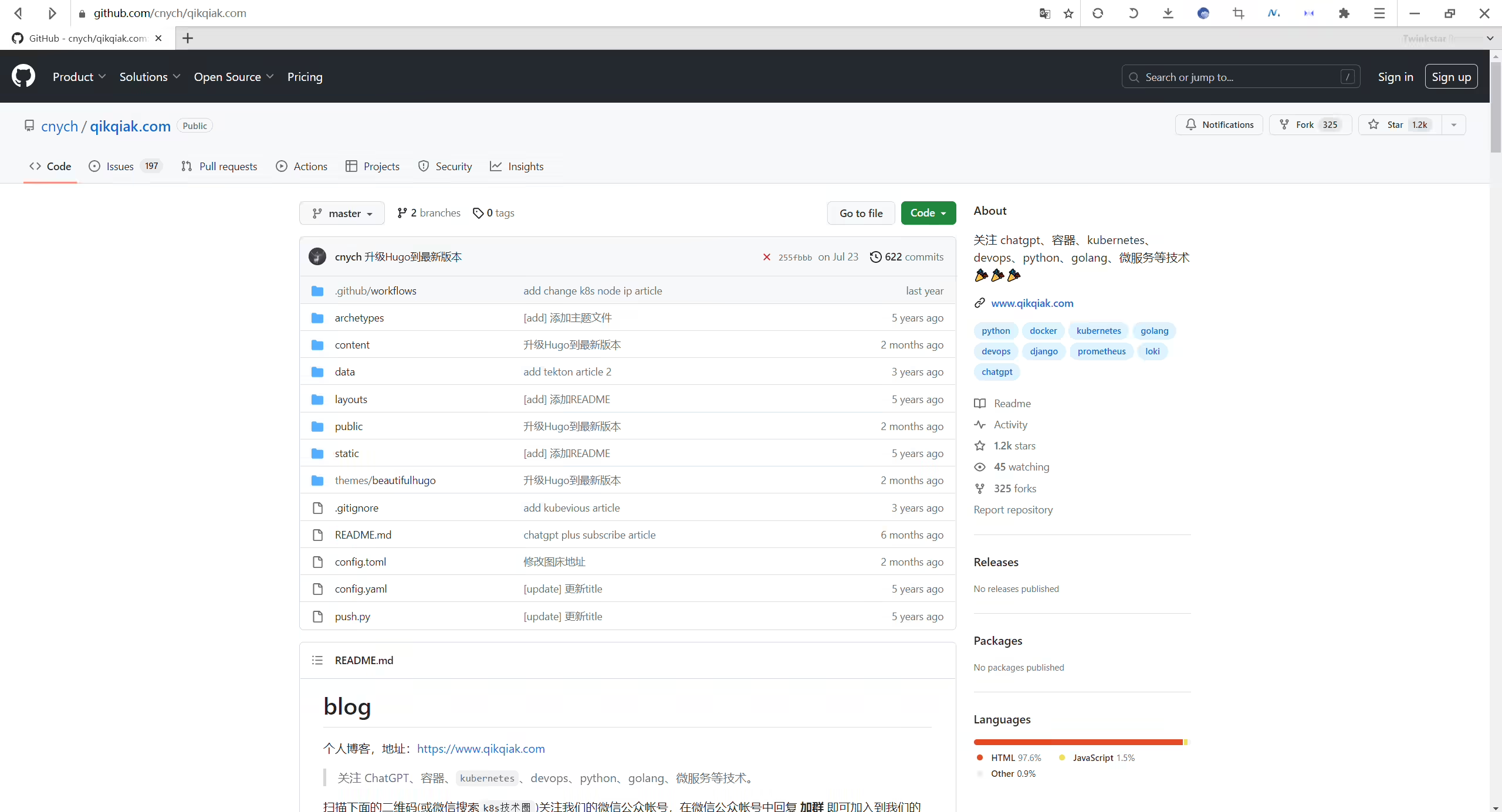
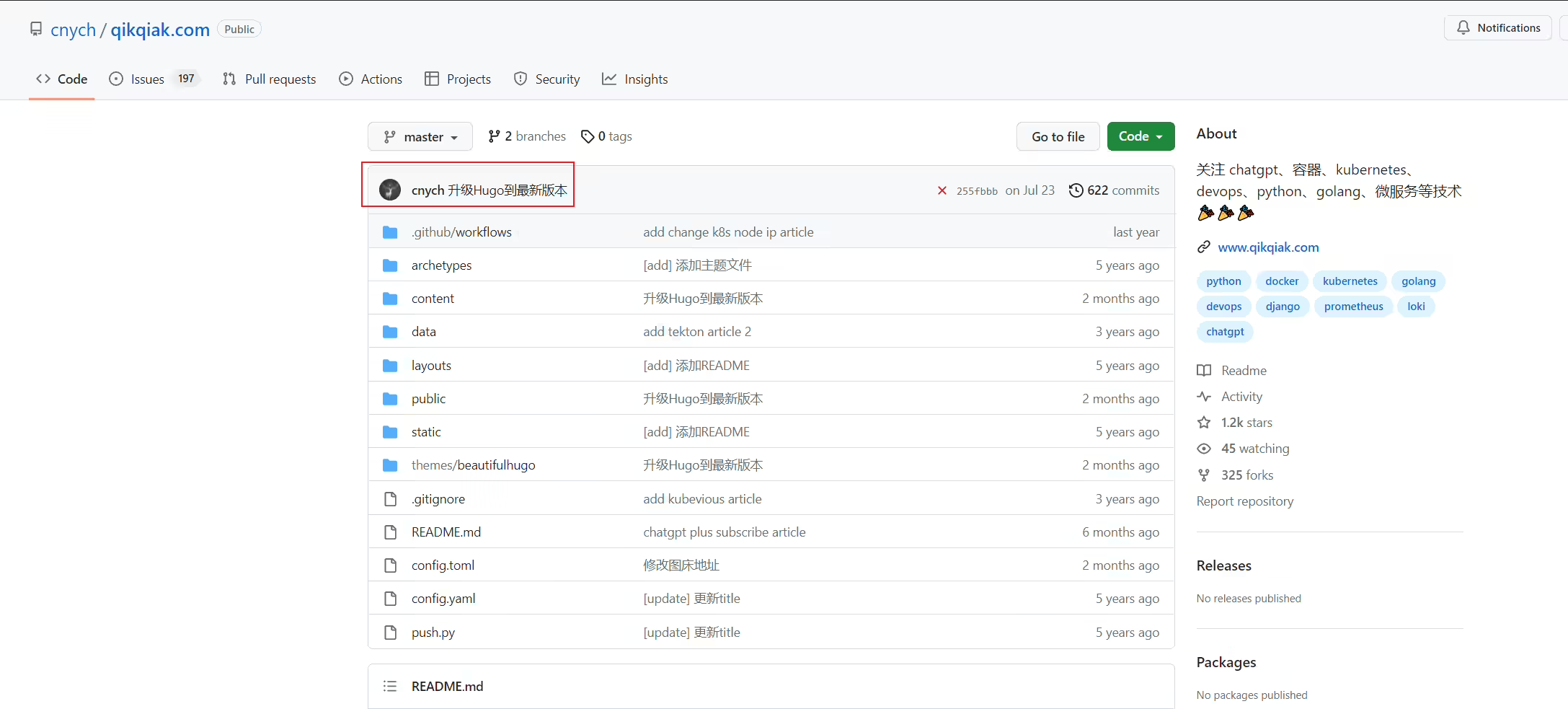
2025年3月18日记录。




 1hg@LAPTOP-G8TUFE0T MINGW64 /d
 2$ cd hugoblog/
 3
 4hg@LAPTOP-G8TUFE0T MINGW64 /d/hugoblog
 5$ ls
 6archetypes/  config.toml  content/  data/  layouts/  public/  static/  themes/
 71. config.toml
 8  所有的hugo站点都有一个全局配置文件,用来配置整个站点的信息,hugo默认提供了跟多配置指令。
 92. content
10  站点下所有的内容页面,也就是我们创建的md文件都在这个content目录下面。
113. data
12  data目录用来存储网站用到一些配置、数据文件。文件类型可以是yaml|toml|json等格式。
134. layouts
14  存放用来渲染content目录下面内容的模版文件,模版.html格式结尾,layouts可以同时存储在项目目录和themes//layouts目录下。
155. static
16  用来存储图片、css、js等静态资源文件。
176. themes
18  用来存储主题,主题可以方便的帮助我们快速建立站点,也可以方便的切换网站的风格样式。
197. public
20  hugo编译后生成网站的所有文件都存储在这里面,把这个目录放到任意web服务器就可以发布网站成功
218. archetypes
22 Hugo new 创建内容页面的时候预置的内容模板💧 查看hugo版本
1PS D:\hugoblog> hugo version
2hugo v0.98.0-165d299cde259c8b801abadc6d3405a229e449f6+extended windows/amd64 BuildDate=2022-04-28T10:23:30Z VendorInfo=gohugoio
💧 创建本地站点根目录
 1$ hugo new site hugoblog
 2Congratulations! Your new Hugo site is created in D:\hugoblog.
 3
 4Just a few more steps and you're ready to go:
 5
 61. Download a theme into the same-named folder.
 7   Choose a theme from https://themes.gohugo.io/ or
 8   create your own with the "hugo new theme <THEMENAME>" command.
 92. Perhaps you want to add some content. You can add single files
10   with "hugo new <SECTIONNAME>\<FILENAME>.<FORMAT>".
113. Start the built-in live server via "hugo server".
12
13Visit https://gohugo.io/ for quickstart guide and full documentation.
14
15
16hg@LAPTOP-G8TUFE0T MINGW64 /d
17$ cd hugoblog/
18
19hg@LAPTOP-G8TUFE0T MINGW64 /d/hugoblog
20$ ls
21archetypes/  config.toml  content/  data/  layouts/  public/  static/  themes/
22
23hg@LAPTOP-G8TUFE0T MINGW64 /d/hugoblog
💧 创建第一个测试文件
1hg@LAPTOP-G8TUFE0T MINGW64 /d/hugoblog
2$ hugo new post/first.md
3Content "D:\\hugoblog\\content\\post\\first.md" created
4
5hg@LAPTOP-G8TUFE0T MINGW64 /d/hugoblog
6$ echo "i love you,xyy hurt!" >> content/post/first.md
💧 本地预览
1$ hugo server -v -D
2或者
3$ hugo server
4
5#备注
6server      A high performance webserver
7  -v, --verbose                    verbose output
8      --verboseLog                 verbose logging
9-D, --buildDrafts include content marked as draft 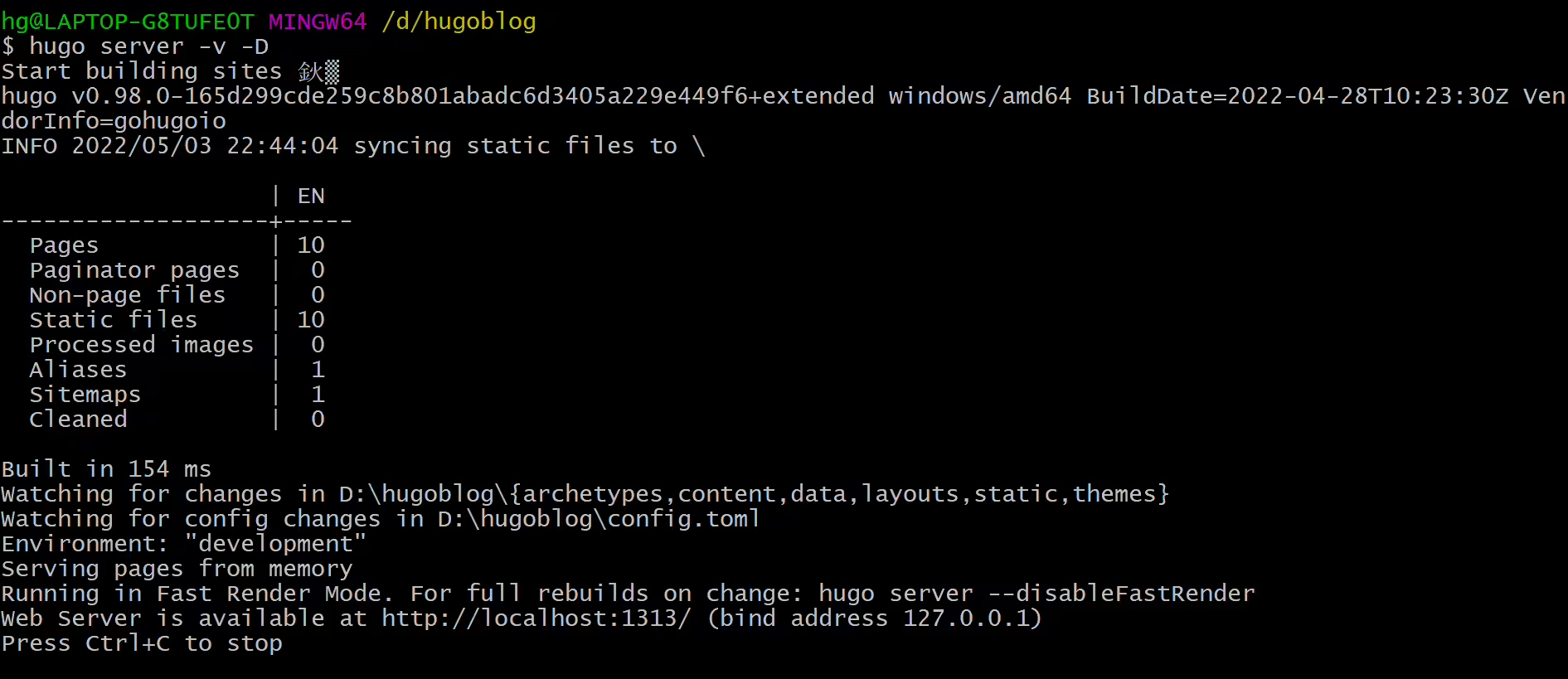
💧 构建数据
1$ hugo -D
2或者
3$ hugo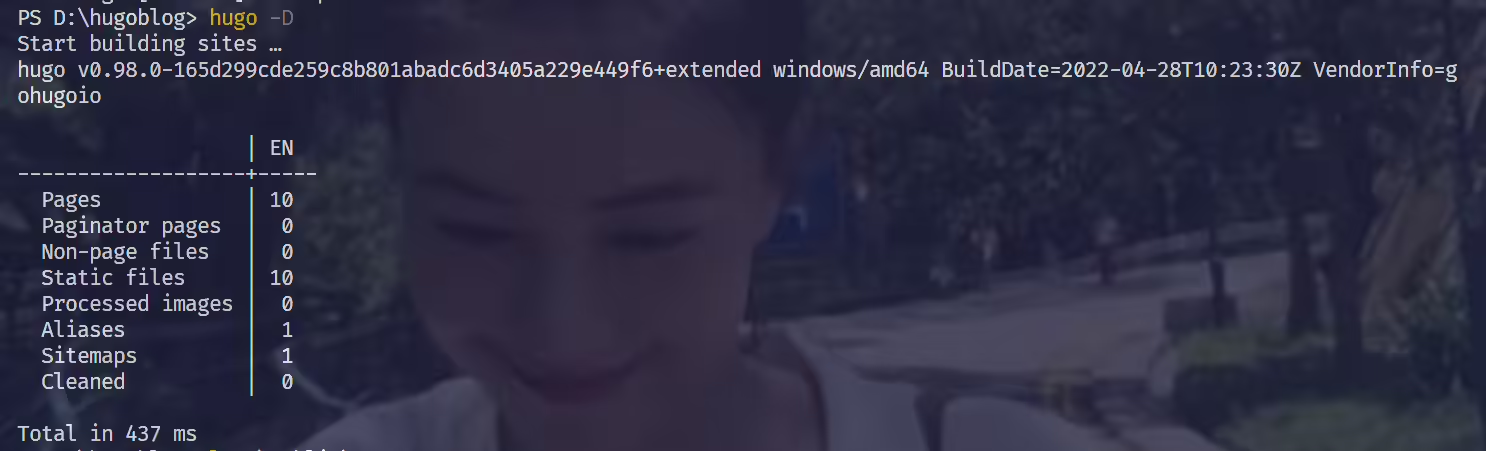
精选 · 友链 · 更多

One的公众号
爱折腾博客的小白
